Key takeaways
- Learners from a partner company or university can now sign in to your Vacademy portal with the work or university login they already use. No new password.
- It works with any provider that supports OpenID Connect: Microsoft Entra ID, Okta, Google Workspace, Keycloak and others.
- Their learner account is created at the first sign-in, and the provider's groups can decide which batches they get.
- Your admin sets it up in Settings, Security, Single sign-on, and can test it before any learner sees it.
Why partners ask for it
Example scenario
An online academy in Pune agrees to run a data-safety course for a Bengaluru software company with 600 employees. The deal is almost done. Then the company's IT team sends two questions. Can our people use their office login? And will access stop on the day someone leaves?
Until now, the honest answer was "we will create 600 accounts and email 600 passwords". Some employees would lose the email. Some would reuse a weak password. The academy's support line would spend the first week resetting logins, and the IT team would have no say over who still has access.
The same question comes from universities. A university's distance-learning program already gives every student a university email account. Asking those students to manage one more password is a small thing, but small things decide whether an IT team says yes.
For an institute, this is not a technical detail. It is often the last question before a corporate or university contract is signed. Single sign-on lets you answer it with a yes.
How it works, in plain words
The partner's IT team already runs an identity provider: the system behind their staff or student login, such as Microsoft Entra ID, Okta or Google Workspace. Single sign-on means their system checks the person, and Vacademy trusts that check. Vacademy uses OpenID Connect, the common standard these providers all support.
Step 1
Learner opens your portal
Clicks "Sign in with" and the partner's name
Step 2
Partner's own login page
Password and two-step check stay with them
Step 3
Vacademy checks the answer
Signature, expiry, user ID, email domain, groups
Step 4
Lands in their courses
Account created or updated, batches set
The partner keeps control. Passwords, two-step checks and the list of who is allowed in all stay in their system. If they turn someone off, that person cannot get back into your portal.
What learners see
Once you switch it on, the login page of your learner portal shows one more button: "Sign in with" followed by the name you choose, such as the partner's company name. Password, one-time code and Google sign-in stay available below it for everyone else.
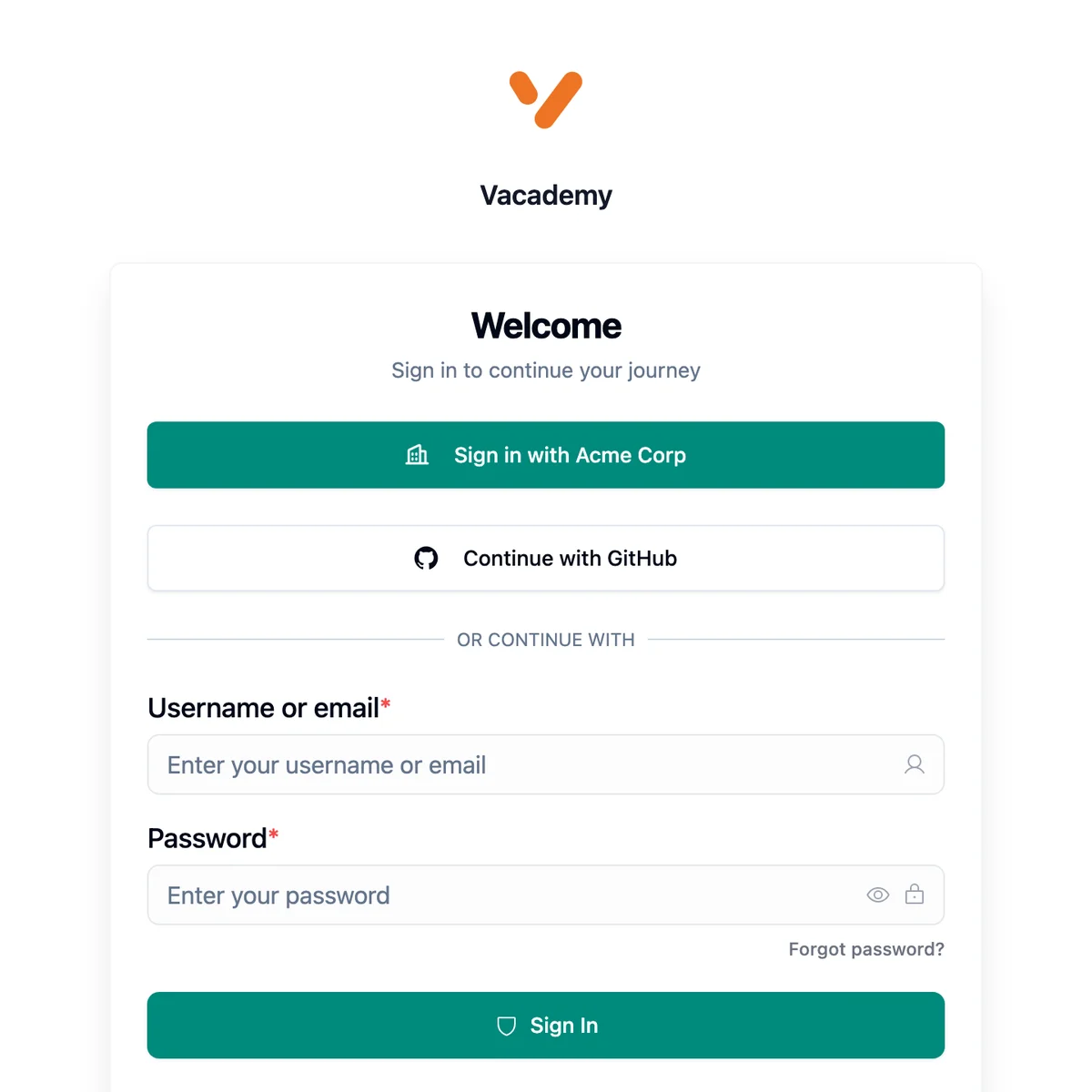
The learner clicks it, signs in on their own organization's page, and comes back to the portal already signed in. A learner who is already signed in at work usually goes straight through without typing anything. If you prefer, the portal can skip this page and send learners straight to their organization's login.
Have a partner asking for this right now?
Tell us who their identity provider is. We will help their IT team register the portal and run the first test with you.
Register your portal in the partner's provider
This step is done by the partner's IT team, in their own system. They create a new "web application" using OpenID Connect and give it the sign-in address that Vacademy shows them. In return, they send you three things:
- The issuer address of their provider, a web address that starts with https.
- A client ID, the name their system gives your portal.
- A client secret, a password for your portal. Ask them to share it through a secure channel, never in an ordinary email.
Fill in the Single sign-on settings
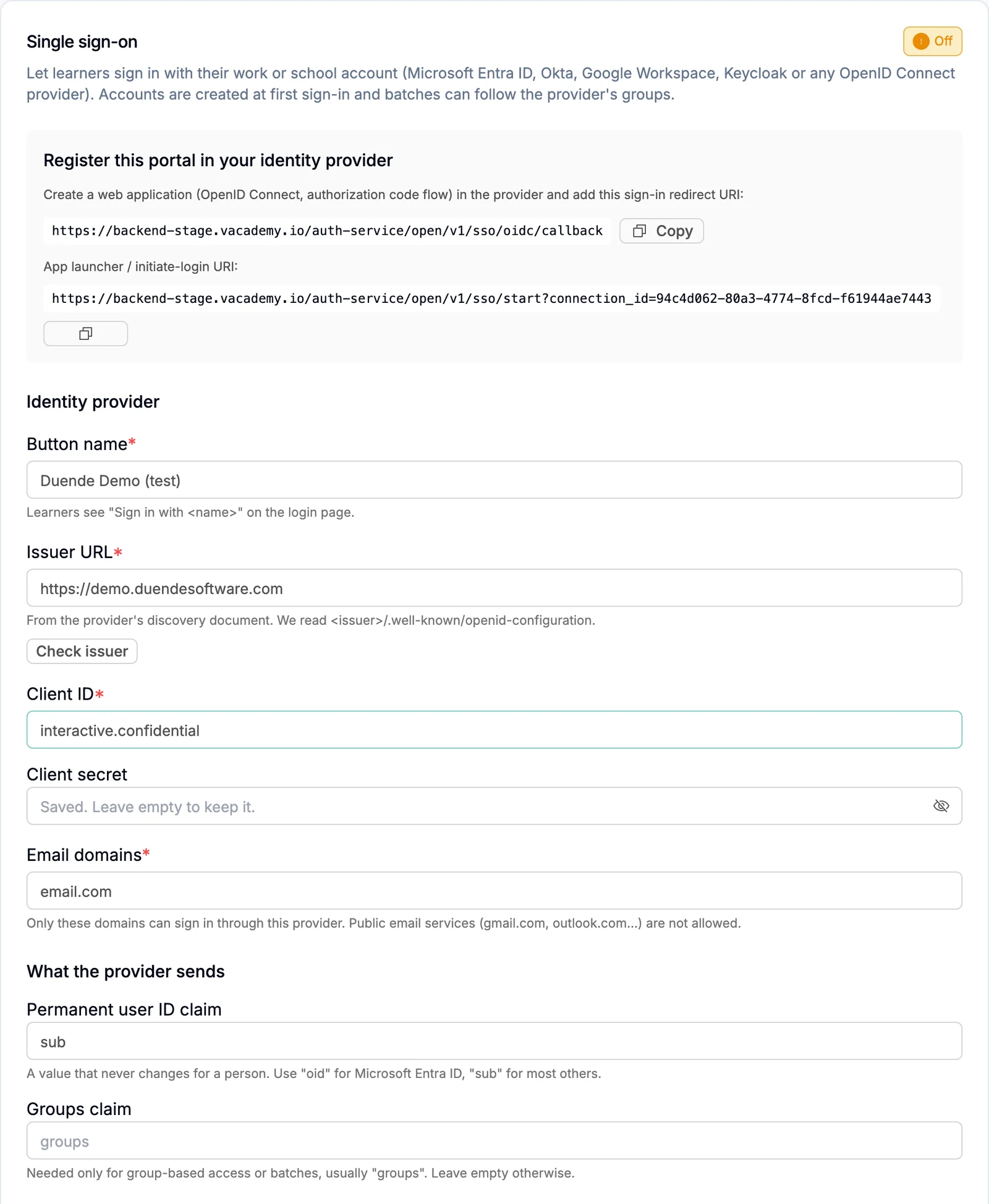
In the admin dashboard, open Settings, then Security. The Single sign-on card is at the top. Fill in:
- Button name: what learners see after "Sign in with".
- Issuer URL, then press Check issuer. Vacademy reads the provider's public settings and tells you if it answered.
- Client ID and Client secret. The secret is stored encrypted and is never shown again.
- Email domains: only people with these email addresses can sign in through this provider, for example the company's own domain. Public email services such as gmail.com or outlook.com are refused here on purpose.
- Permanent user ID claim: the value that never changes for a person. Use "oid" for Microsoft Entra ID and "sub" for most others.
Choose who gets in, and which batches they get
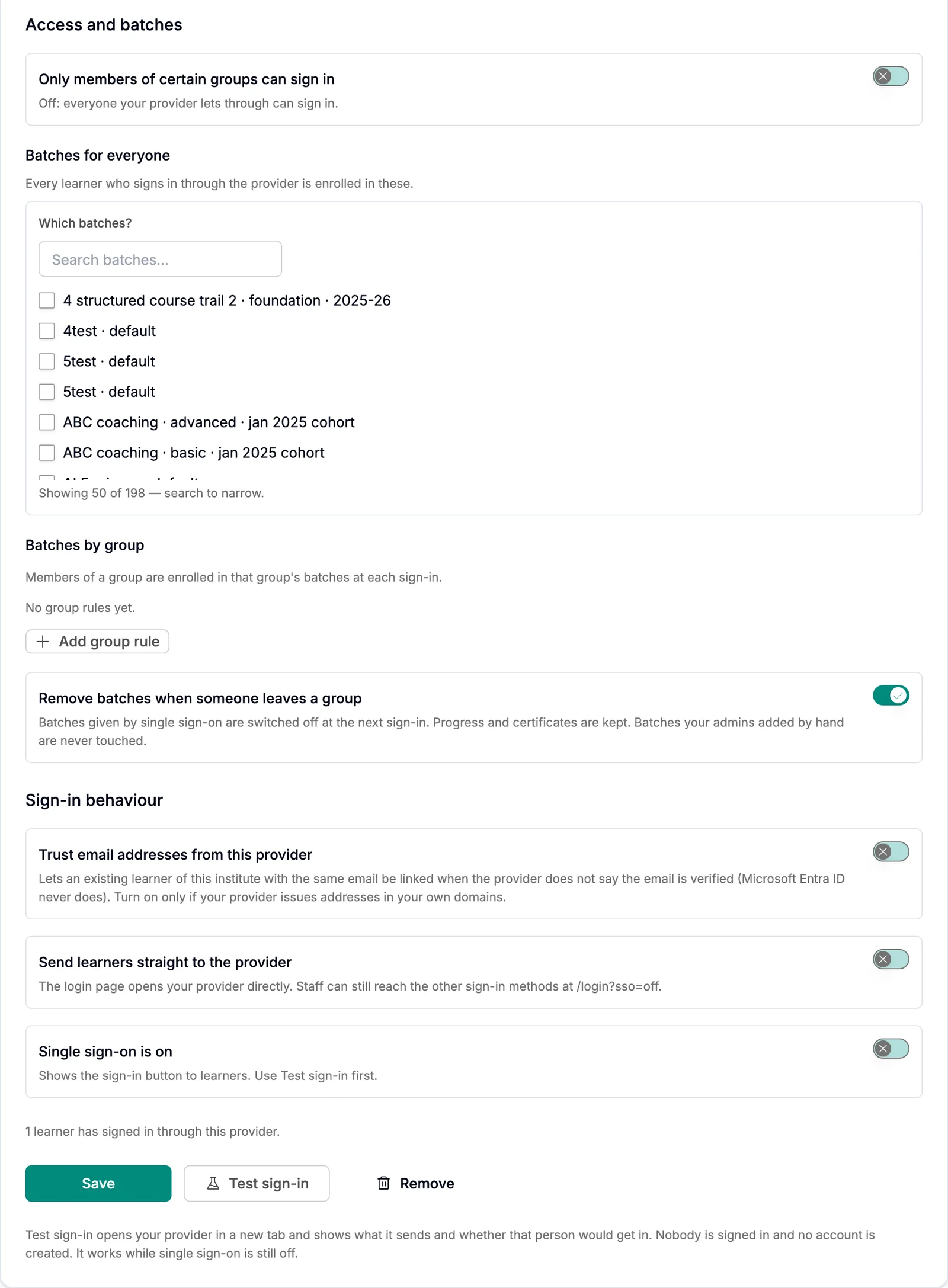
By default, everyone the partner's provider lets through can sign in. Most IT teams prefer to decide with groups, the lists they already keep, such as "Sales India" or "MBA 2026 batch". Enter the name of the groups claim (usually "groups"), and then you can:
- Let only certain groups sign in. Anyone outside them sees a polite message that their account does not have access yet.
- Give everyone some batches, for example the induction course.
- Give batches by group. Members of "Sales India" get the sales course; members of "Finance" get the finance course.
- Remove batches when someone leaves a group. Only batches that single sign-on gave are switched off, at the next sign-in. Progress and certificates are kept, and batches your admins added by hand are never touched.
Run a test sign-in
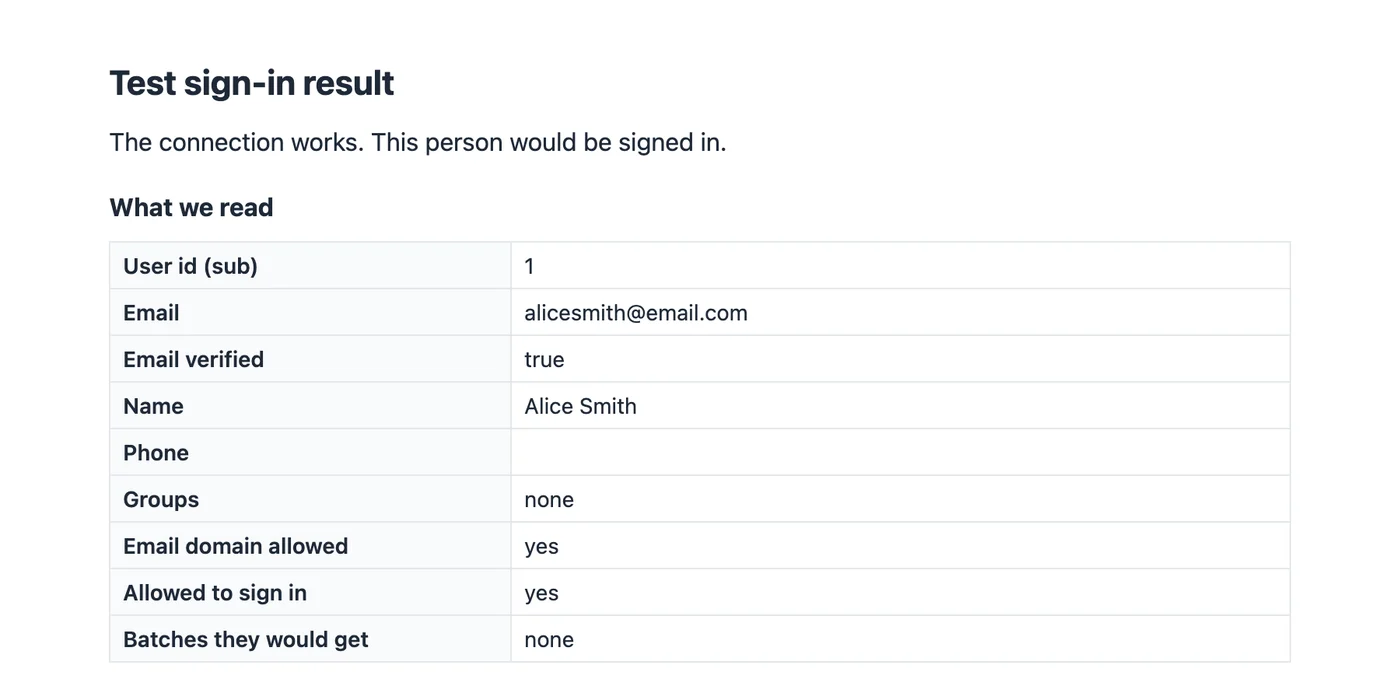
Save, then press Test sign-in. It opens the partner's login page in a new tab. Sign in with a test account from the partner, and Vacademy shows a result page: what the provider sent, whether the email domain is allowed, whether the person would get in, and which batches they would get.
Switch it on
Turn on Single sign-on is on and save. The button appears on your learner portal. Two more switches are worth knowing:
- Send learners straight to the provider. The login page opens the partner's login directly. Your own staff can still reach the other sign-in methods by adding
?sso=offto the login address. - Trust email addresses from this provider. Some providers, Microsoft Entra ID among them, never say that an email address is verified. Turn this on only if the provider gives out addresses in the partner's own domains. It decides whether a learner already in your institute can be matched to their new login.
What happens at each sign-in
| Situation | What Vacademy does |
|---|---|
| First sign-in | Creates a learner account in your institute and adds the batches you chose. |
| Already a learner with you | Links the existing account only if it is a learner of your institute alone and the provider vouched for the email. Otherwise a separate account is made, so nobody's account elsewhere is touched. |
| Every later sign-in | Same account. The name is updated, and batches follow the person's current groups. |
| Left a group | Batches that single sign-on gave for that group are switched off. Progress is kept. |
| Turned off at the partner | Cannot sign in any more. The account and its history stay. |
| Not in an allowed group or domain | Is told plainly that their account does not have access yet. |
Answers for the partner's IT team
The IT team will ask how the sign-in is protected. These are the answers, in their words and in plain ones.
No passwords reach us
People type their password only on their own organization's page. Vacademy never receives or stores it.
Every answer is checked
The signed answer from the provider is checked for signature, issuer, audience and expiry. Unsigned or shared-secret tokens are refused. The flow uses PKCE and a nonce.
A one-time, 60-second code
The portal receives a code that works once, for 60 seconds, and only in the browser tab that started the sign-in. Login tokens never appear in a web address.
One person, one account
Accounts are matched on the provider's permanent user ID, never on the email address alone.
No reach beyond your institute
An account that also has access somewhere else, or a staff role, cannot use this sign-in at all.
The secret stays secret
The client secret is stored encrypted and is never shown again, not even to your admins.
Vacademy holds ISO 27001 and ISO 9001 certifications. For the full picture, including encryption and data retention, see our security page and sign-in and roles.
What is not available yet
It is better to know this before you promise it to a partner.
- SAML 2.0 is on request. Self-serve setup uses OpenID Connect, which Microsoft Entra ID, Okta, Google Workspace and most others support.
- No SCIM. Accounts are not created ahead of time from the partner's directory. They are created at each person's first sign-in.
- Learners only. Teachers and admins keep signing in to the admin dashboard as they do now.
- Web portal only. It works in any browser, including on a phone, but not yet inside the branded Android and iOS apps.
- Signing out is local. Signing out of the portal does not sign the person out of their organization's account.
- Results stay in Vacademy. Completions are not sent back to the partner's HR system or LMS automatically.
Corporate training
Employees use their office login. Groups decide the courses.
Universities
Distance-learning students use their university account.
Online academies
Win the partner deal without emailing hundreds of passwords.
Running training for companies? See Vacademy for corporate training. Building a university program? See Vacademy for university distance learning.
Questions institutes ask
Which identity providers work with Vacademy single sign-on?
Any provider that supports OpenID Connect, the common standard behind work and university logins. That includes Microsoft Entra ID, Okta, Google Workspace, Keycloak, Auth0 and Ping. You enter the provider's issuer address, client ID and client secret; there is no separate connector to install. We tested the full sign-in on our live servers with a standard OpenID Connect provider; ask us to run a test with yours before you switch it on.
Do learners need a separate Vacademy password?
No. They click "Sign in with" and your partner's name, sign in on their own organization's login page, and come back to the learner portal already signed in. Passwords and two-step checks stay with their organization. Vacademy never sees the password.
Is a learner account created automatically?
Yes. The first time someone signs in, Vacademy creates their learner account in your institute and adds them to the batches you chose. Each later sign-in uses the same account and updates their name and batches.
What happens when someone leaves the partner organization?
Their organization stops letting them sign in, so they can no longer reach the portal. Their account, progress and certificates stay on record. If they leave a group that gave them a batch, that batch is switched off at their next sign-in, but only if single sign-on gave it. Batches they paid for or that your admins added are never touched.
Can we test it before learners see it?
Yes. Test sign-in opens the provider in a new tab and shows what the provider sent and whether that person would get in. It works while single sign-on is still switched off, and it never signs anyone in or creates an account.
Is SAML or SCIM supported?
Not as a self-serve setting yet. Today every connection uses OpenID Connect, which all the providers above support. SAML 2.0 is available on request. Automatic account creation and removal from a directory (SCIM) is not available; accounts are created at each person's first sign-in instead.
Does it work in the mobile app?
It works on the learner portal in any browser, including a phone's browser. It is not available inside the branded Android and iOS apps yet.
Can teachers and admins use it too?
Not yet. Single sign-on is for learners today. Teachers and admins keep signing in to the admin dashboard as they do now.
Try Vacademy with your partner's login
Book a call with the partner's IT team on the line. We will register the portal, run a test sign-in together and switch it on when they are happy.