Key takeaways
- Daily engagement puts a few short tasks on every learner's home screen each day: a question of the day, a reading, flashcards, a poll, a game or a lesson from your course.
- Plan with AI drafts a whole week from a one-line brief and your own chapters. You review it; nothing reaches learners until you publish.
- Busy teachers can plan by replying to a weekly email. No login, and the draft still waits for their review.
- Progress shows who is on track, who is behind and who has not started. Flashcards, Poll and Game now work as course slides too.
Watch the tutorial
Spoken steps with captions on screen. Download the video to share it with your teachers.
Most learners open the app twice a month: when a class starts and the night before a test. Everything you teach in between has to survive on memory. A few minutes of practice every day does more than one long revision session, but nobody sends learners those few minutes.
Daily engagement does. A teacher plans what a batch sees each day, in a time window: “today from 6 AM to 8 PM, one question and a short reading; answers at 8 PM.” The tasks sit at the top of the learner's home screen. Every attempt is tracked and scored, and the points feed the leaderboard.
This guide covers every step, using a real week we planned for a Class 7 batch learning Ohm's law. If learners usually drift away after the first few weeks, read why engagement drops after week three alongside it.
What learners see
The Today card shows how many tasks are done (“0 of 3”), when they close, and what is next. Tomorrow's tasks show as locked, with the time they unlock, so learners know something is coming but cannot open it early.
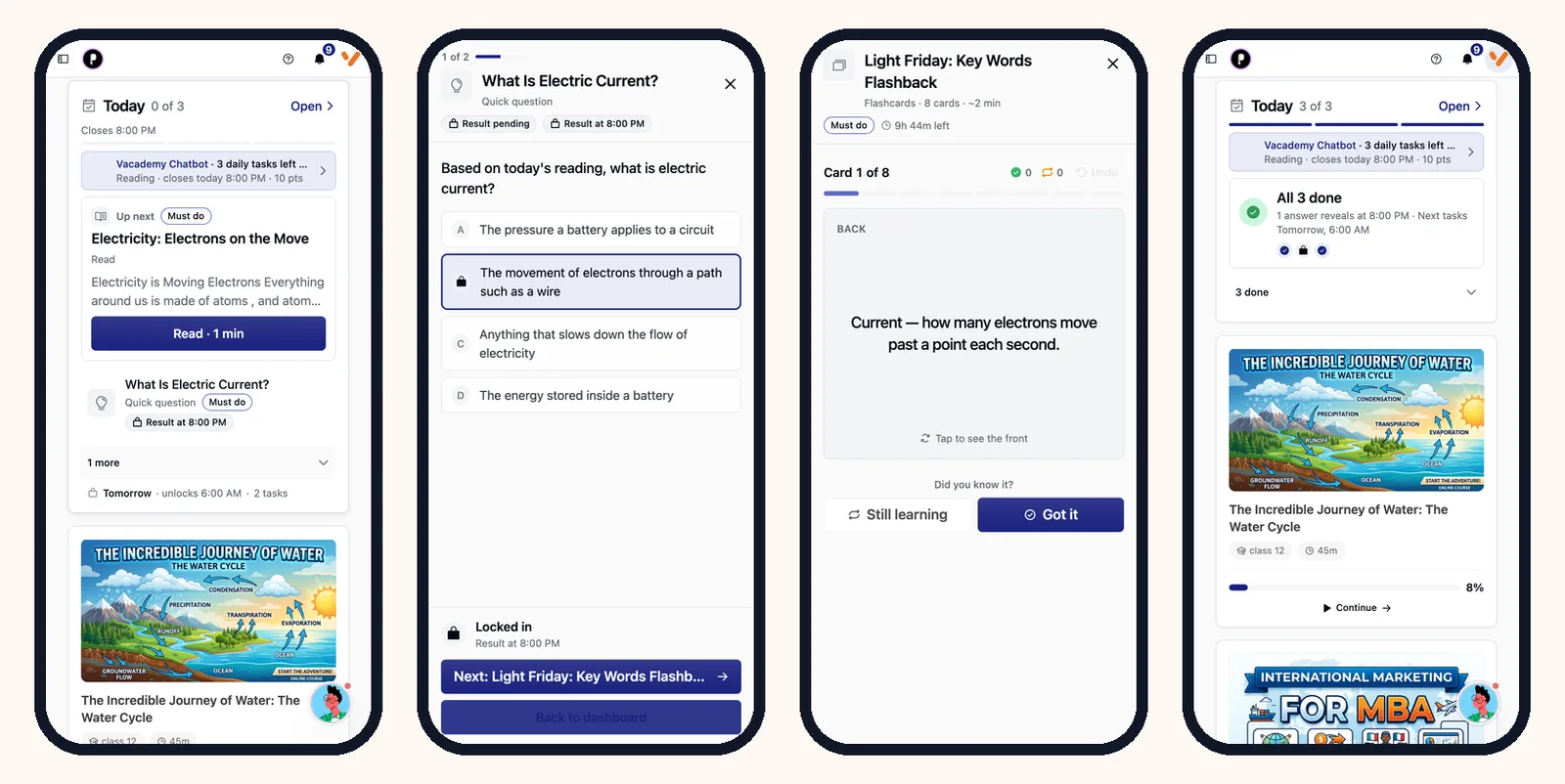
- A reading counts once the learner reaches the end and has read for at least 15 seconds. The button says “Mark as read” until then.
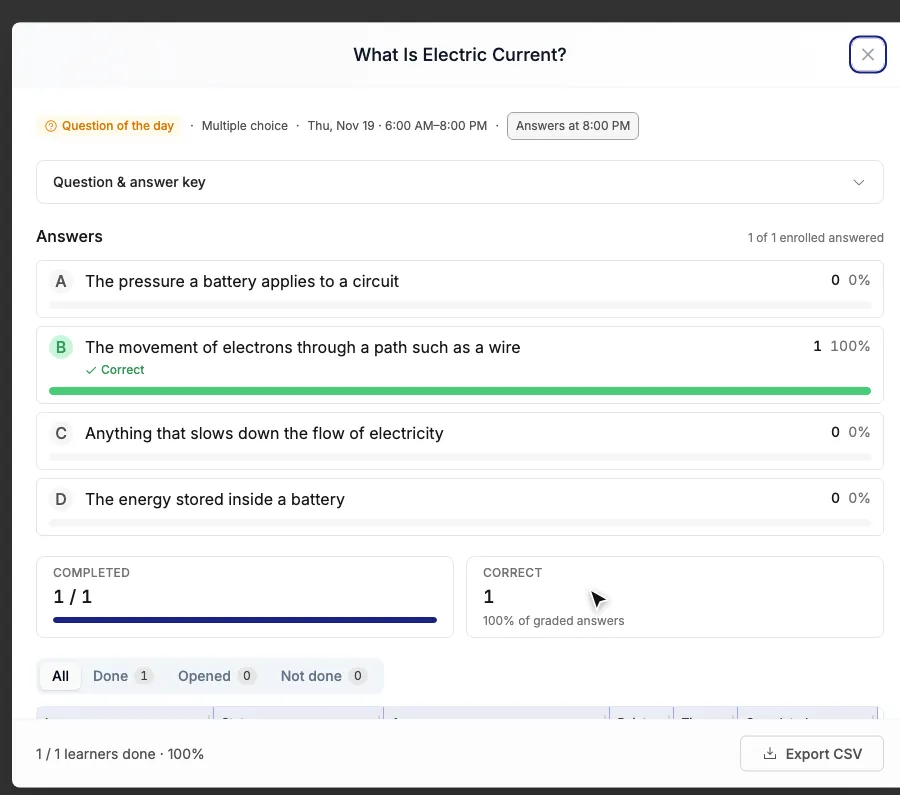
- A question of the day is locked in when they press Check answer. With a reveal time, the answer and the batch result appear then (“Result at 8:00 PM”).
- A flashcard deck is flipped card by card. Cards marked Still learning can be studied again; practice rounds do not change the score.
In our week, a reading earned 10 points and a question earned 10 points for answering plus 20 if correct. You set the points for every task.
Seven kinds of task
Reading
A short explainer. It counts once the learner has scrolled to the end and stayed long enough.
Visual note
A visual explainer, read the same way.
Question of the day
Multiple choice graded by the server, a written answer, or a file upload. The answer can wait for a reveal time.
Flashcards
A deck to flip. Learners mark each card Got it or Still learning.
Poll
An opinion question with no right answer.
Game
Your own HTML game, run in a safe sandbox on the learner's device.
Course content
A lesson from the batch's own course, such as a video or a document.
Find Daily engagement
In the admin dashboard, open LMS, then Learning Engagement, then Daily Engagement. Every plan is listed here, with filters for batch and status: Current, Running, Upcoming, Drafts, Ended and Archived.
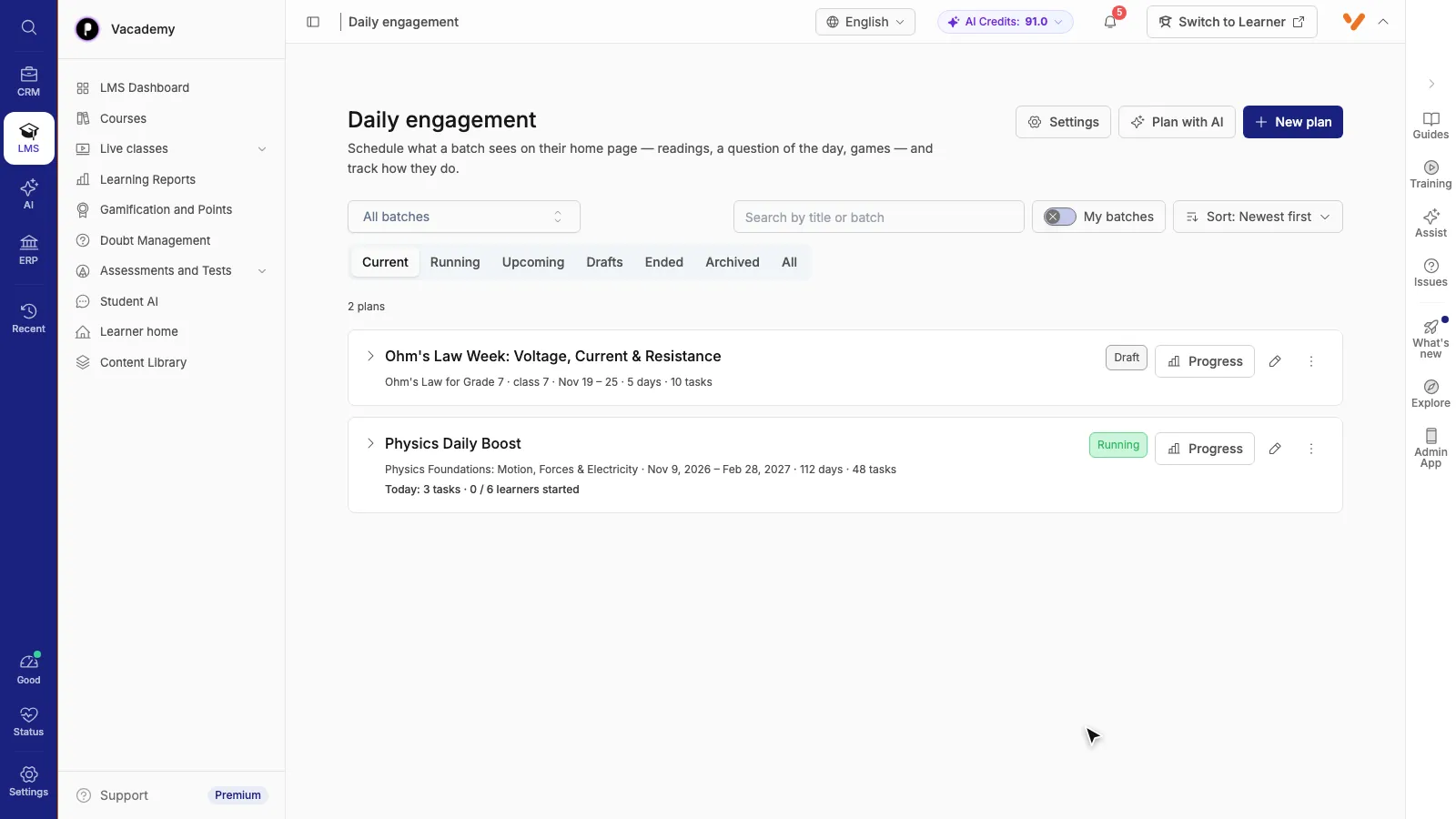
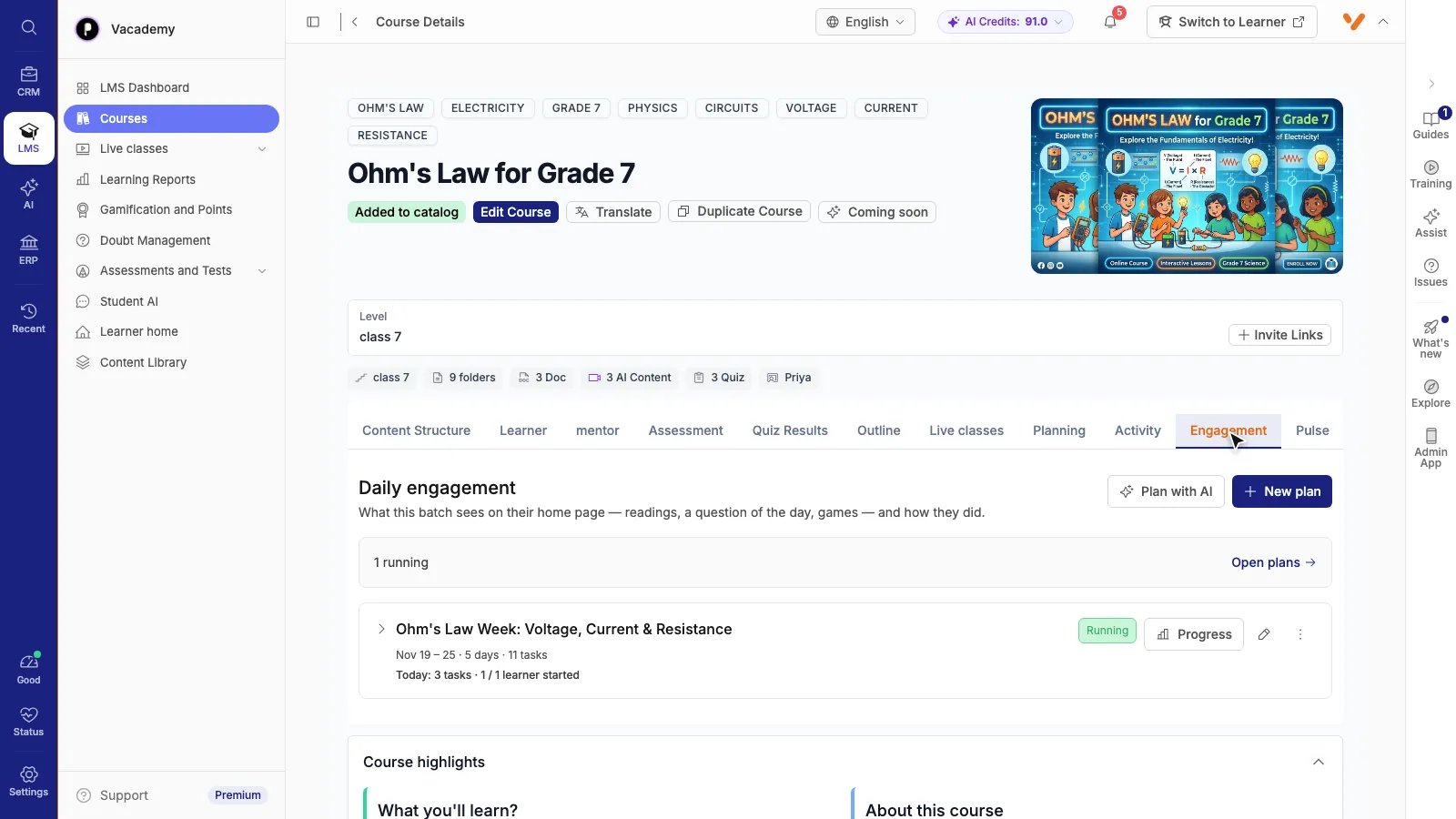
Teachers reach the same plans from three other places:
- The Engagement tab on every course page shows the plans for that batch. Admins can move or hide the tab for each role in Display Settings.
- Assign as task on any published lesson starts a new plan with that lesson already added.
- A dashboard card says how many batches have no tasks in the next 7 days, with a Plan button next to each. Teachers see only their own batches.
Plan a week with AI
Press Plan with AI. Pick the batch (you can pick several), then answer What should learners engage with? in a line or two. Ours was: “Ohm's law this week: voltage, current and resistance, V = I x R, and simple circuit problems. Keep it light on Friday.”
Under Ground it in your course content, tick the chapters. The AI then writes only from what is in them. It reads text lessons; videos, PDFs, quizzes and unpublished lessons are left out, and the screen tells you how many.
Shape the plan
| Setting | Choices |
|---|---|
| Starts | Any date |
| Duration | 1 day, a week, two weeks, a month, or a custom number of days |
| Runs on | Any weekdays. We switched off Saturday and Sunday. |
| Tasks per day | 1, 2 or 3 |
| Difficulty | Easy, Medium or Hard |
| Kinds of task | Question of the day, Written question, Poll, Reading, Flashcards |
| Daily window | Opens at, Closes at, Reveal answers at (default 6 AM, 8 PM, 8 PM) |
| Language | English, Hindi, Hinglish, Marathi, Bengali, Gujarati, Punjabi, Tamil, Telugu, Kannada, Malayalam, Odia, Urdu and more |
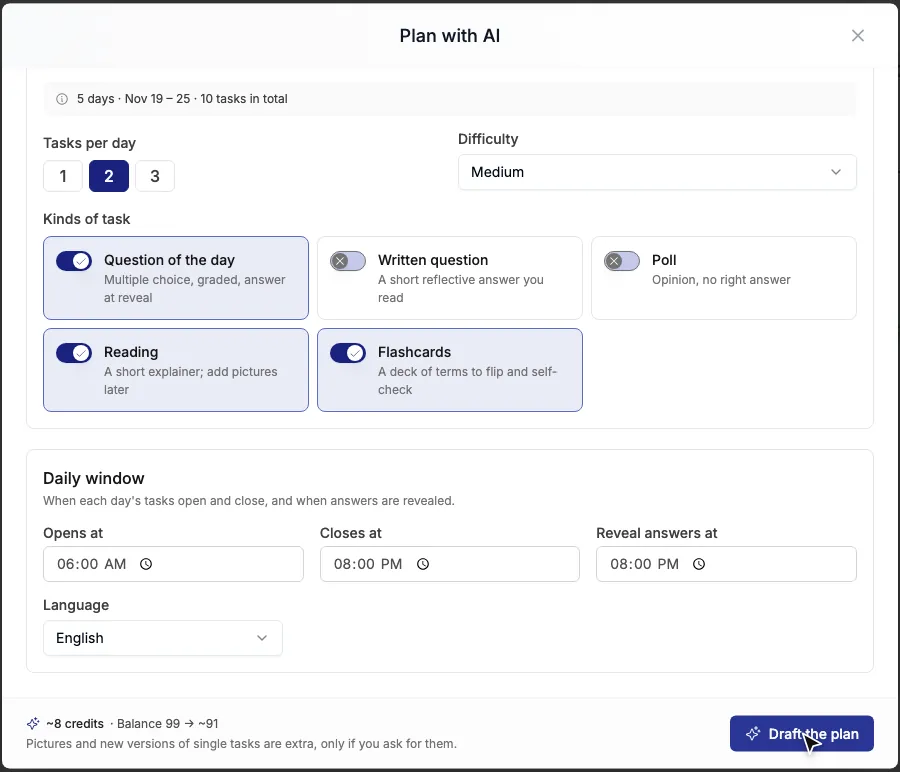
The cost appears next to Draft the plan before you press it. Our five-day, ten-task week was about 8 credits. You are charged only for a draft that comes back.
Review the draft
The screen says drafting usually takes one to three minutes; ours took about 20 seconds. You can close the window and it keeps drafting.
The review shows every day on the left, with a theme (“Friday light: the water pipe analogy” — it kept our Friday light), and each task in full. For any task you can:
- edit it directly, or open the full editor;
- ask for a New version (about 2 credits);
- add a picture to a reading (about 2 credits);
- remove it, or remove a whole day.
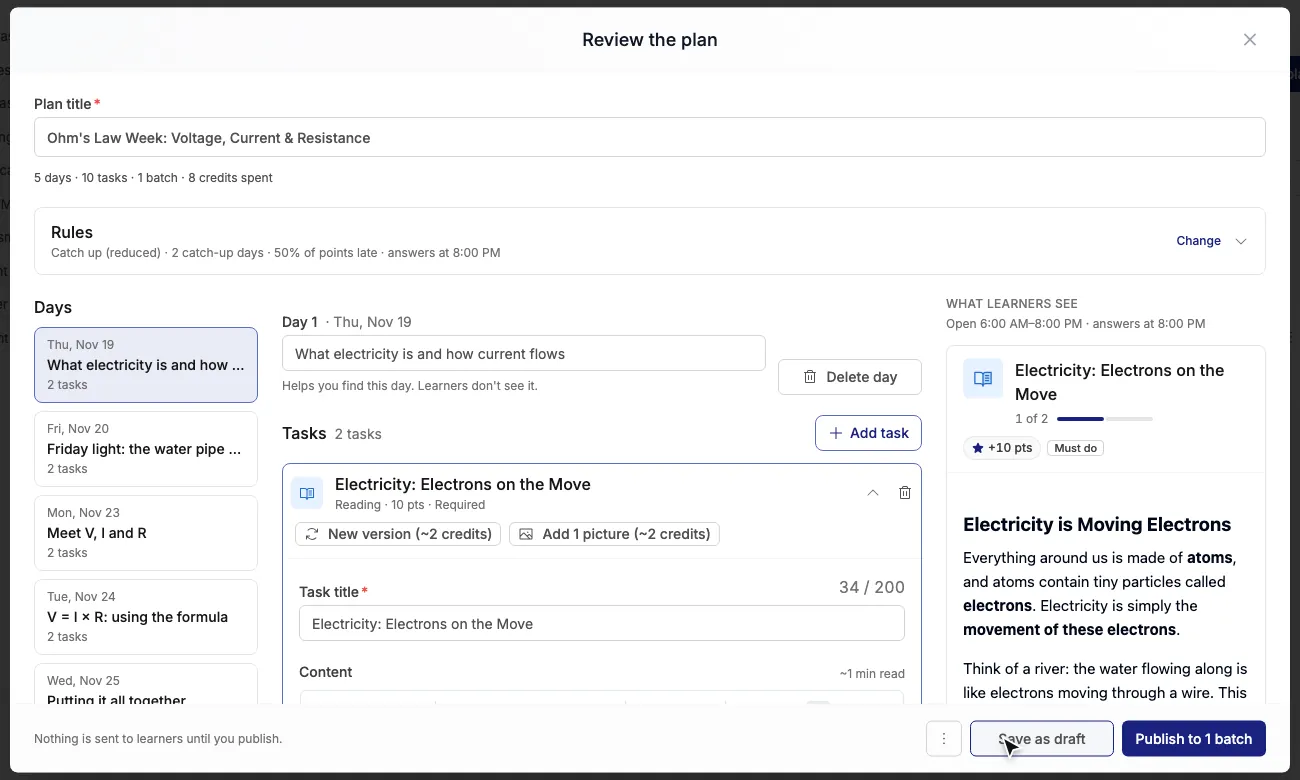
Then press Save as draft to keep working on it, or Publish if it is ready.
Fine-tune each day
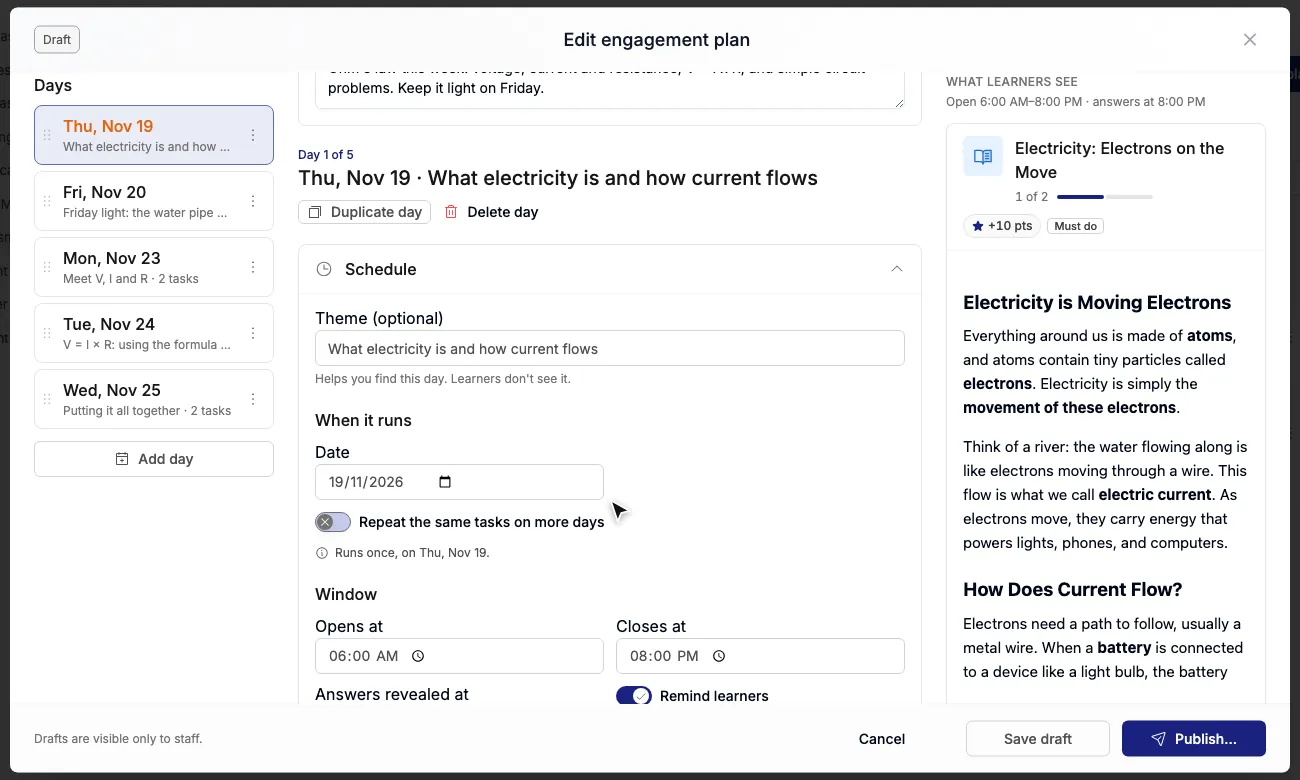
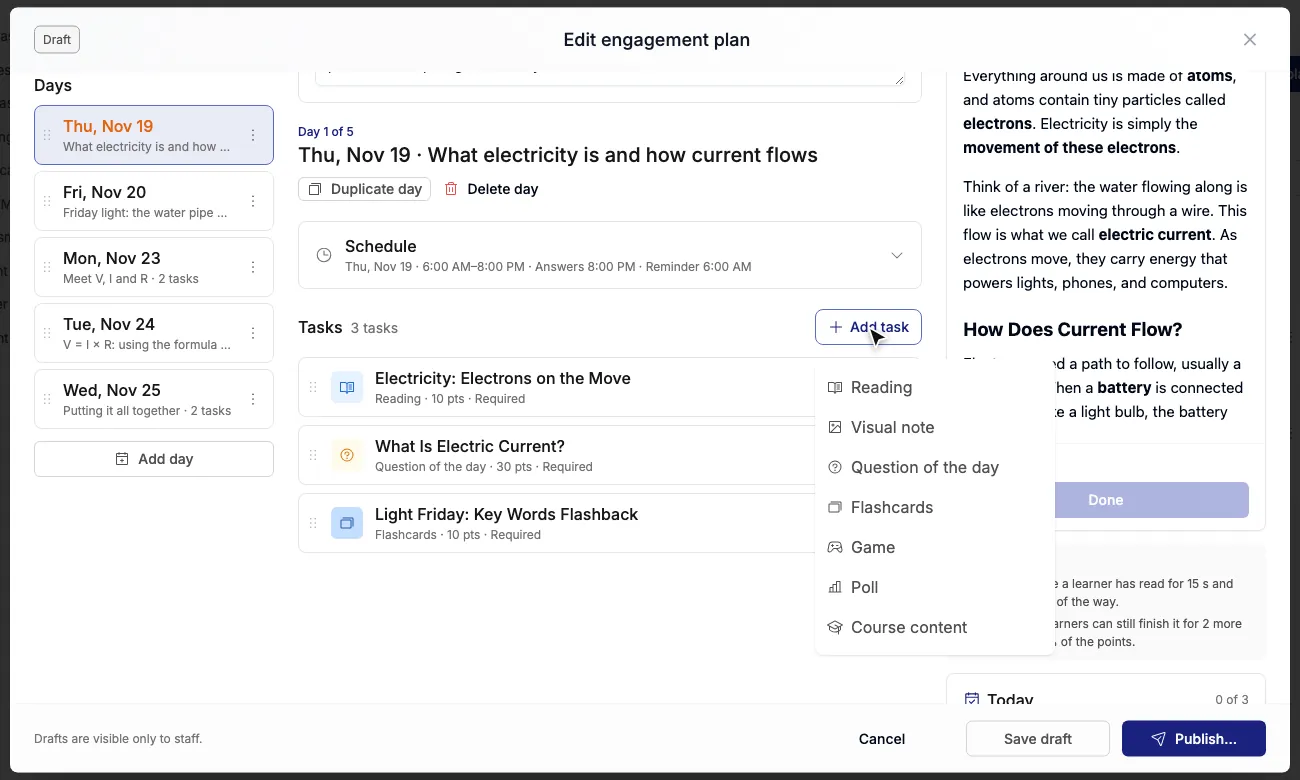
Open the plan with Edit plan. The days are on the left; drag them to reorder, or duplicate a day. Each day's Schedule holds:
- the date, and an option to repeat the same tasks on more days (for example, every weekday);
- the window: when the tasks open and close;
- Answers revealed at: when question answers and poll results appear;
- Remind learners: a notification at the time you choose.
Edit a task
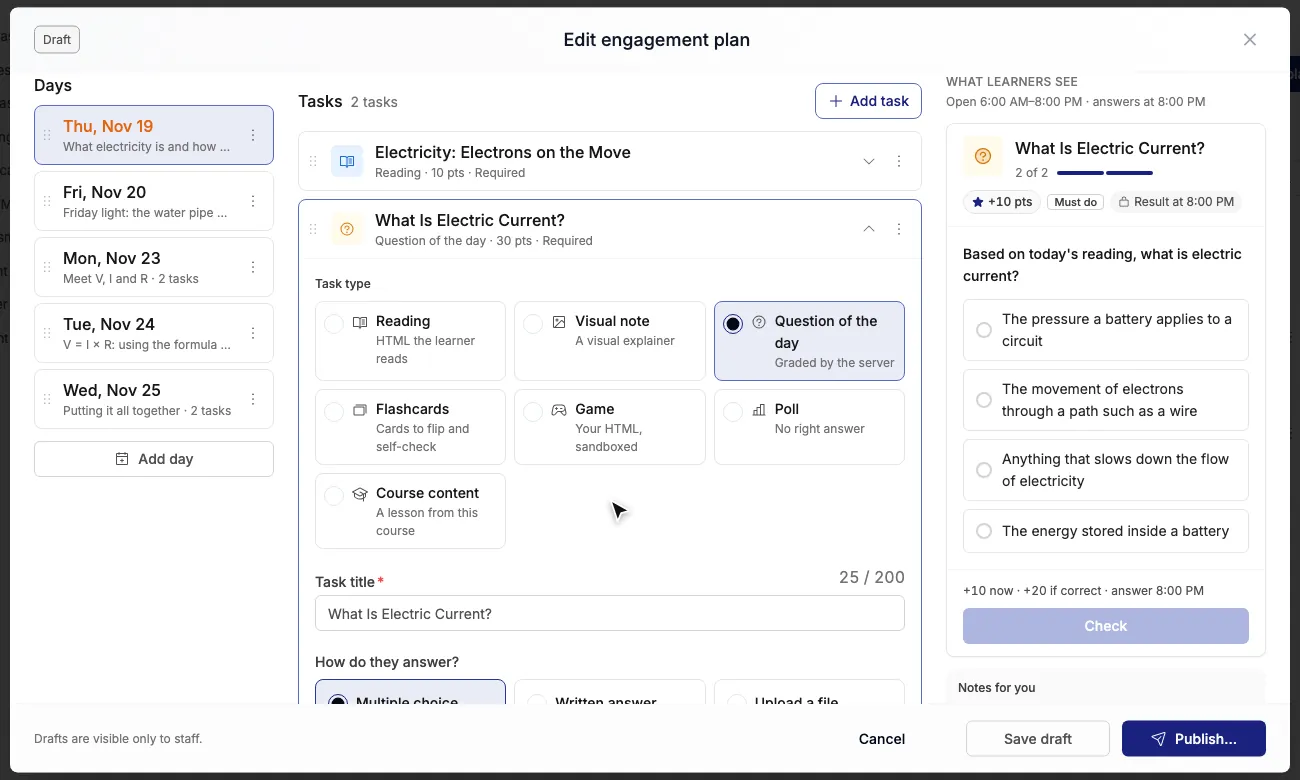
Open a task to change its type, title and content. A question of the day can be multiple choice (graded by the server), a written answer you read, or a file upload. Mark the correct option, add an explanation shown at reveal, and switch on Only show the answer at reveal if learners should not see it straight away. Set Points for completing and a Bonus if correct.
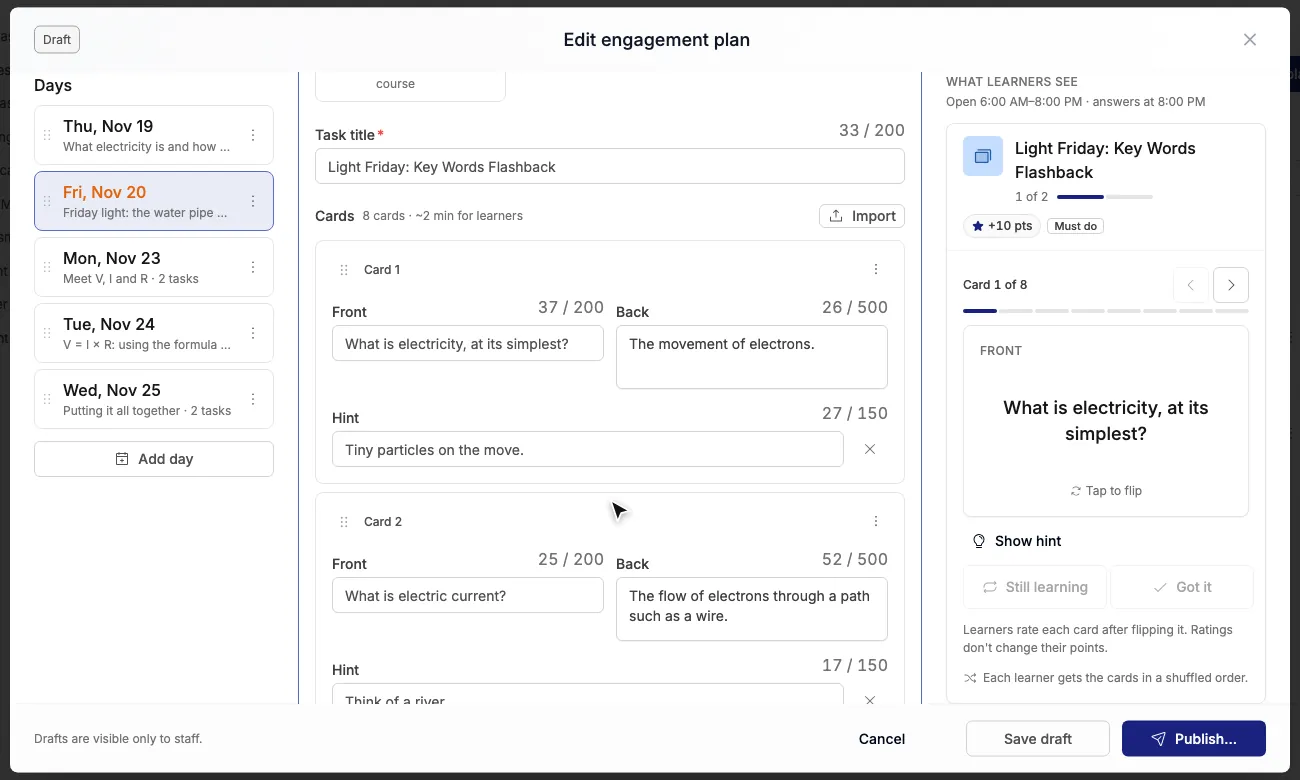
A flashcard deck has a front, a back and an optional hint for each card, up to the deck limit. Add cards one by one, or use Import a list to paste terms and definitions. Keep Shuffle for each learner on so every learner gets their own order.
Move, copy and add tasks
Each task's menu has Duplicate and Move to day. In the video we copied Friday's flashcards to Thursday as well. Press Add task to add your own: Reading, Visual note, Question of the day, Flashcards, Game, Poll or Course content.
Decide what happens when a learner misses a day
| If a learner misses it | What happens |
|---|---|
| Expires | The task is gone when the window closes. |
| Catch up | The learner can still do it late, for full points. |
| Catch up (reduced) | Late, for fewer points. You set the catch-up days and the percentage. Our AI draft used 2 days at 50%. |
Publish
Press Publish…. Vacademy shows exactly what will happen: which batch starts seeing the tasks and from which date, how many learners, dates and tasks are included, and any dates that are already over.
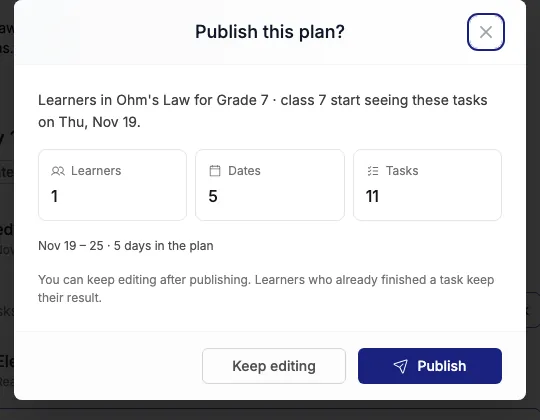
You can keep editing after publishing. Learners see changes as soon as you save, and those who already finished a task keep their result. From the plan's menu you can also hide a plan, move it back to drafts, archive it, or duplicate it for another batch.
Track progress
On the plans list, open a plan to see each day's tasks and how many learners have done each one. Click a task to see every learner's answer, the share who answered each option, and the accuracy.
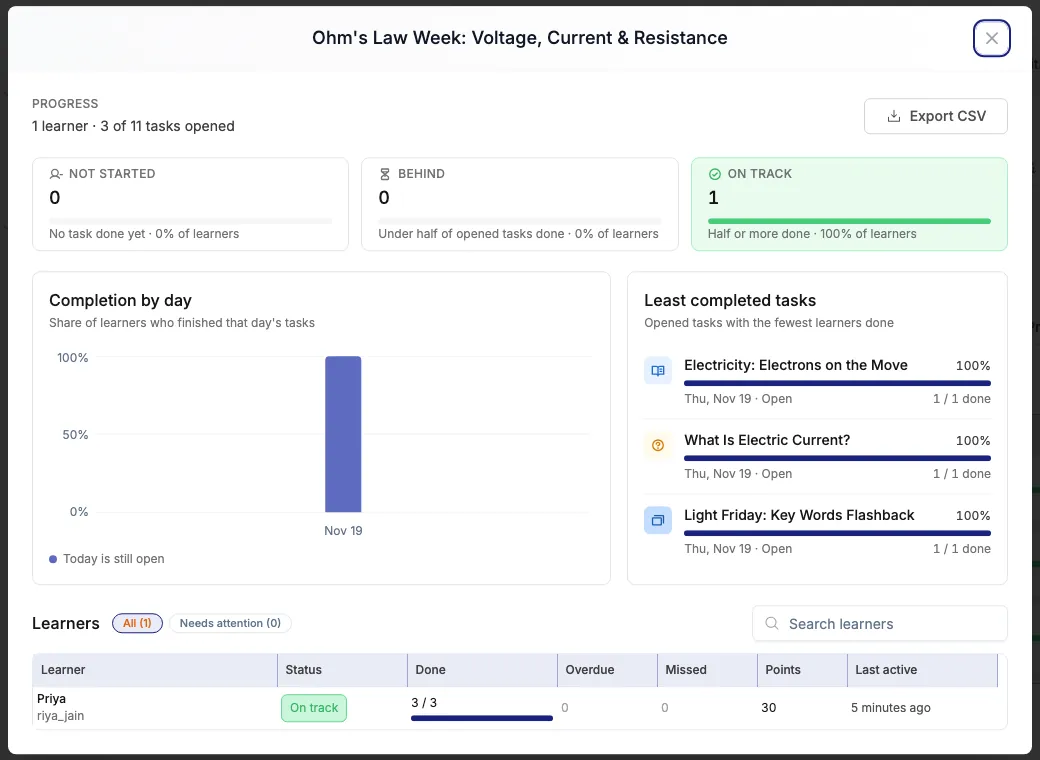
Progress gives the whole plan at a glance:
- Not started: no task done yet. Behind: under half of the opened tasks done. On track: half or more.
- Completion by day: the share of learners who finished each day's tasks.
- Least completed tasks: where learners are dropping off.
- A learner table with done, overdue, missed, points and last active, and a Needs attention filter.
Institute settings
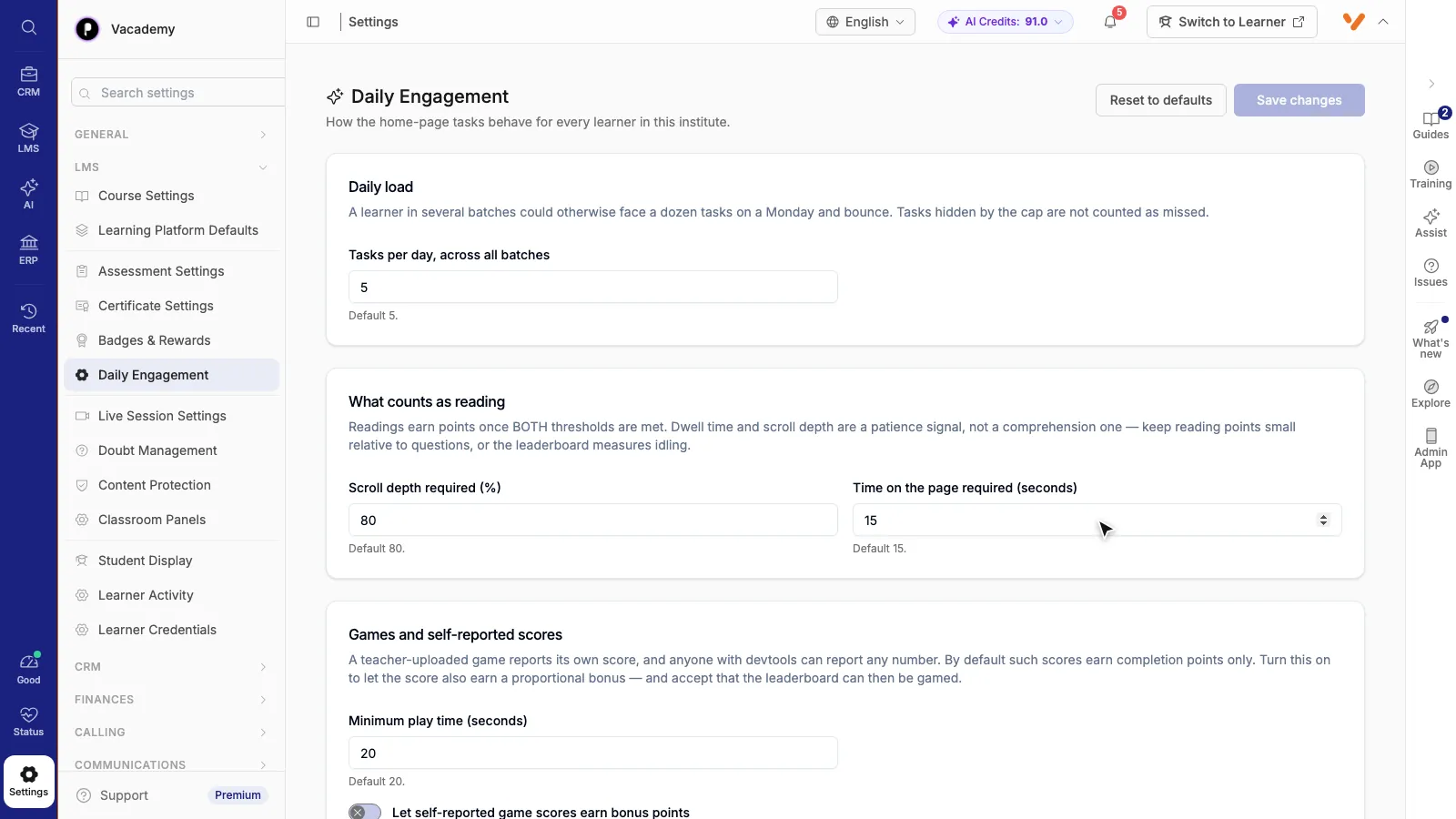
Admins set the rules for every plan in Settings, then Daily Engagement:
| Setting | Default | Why it matters |
|---|---|---|
| Tasks per day, across all batches | 5 | A learner in several batches could otherwise face a dozen tasks on a Monday. Hidden tasks are not counted as missed. |
| Scroll depth required | 80% | A reading earns points only when both reading thresholds are met. |
| Time on the page required | 15 seconds | |
| Minimum play time for games | 20 seconds | |
| Let self-reported game scores earn bonus points | Off | A game reports its own score, which a determined learner can fake. By default games earn completion points only. |
The weekly planning email
Teachers know what they will teach next week. They do not always have time to open a planning screen. The weekly planning email asks them instead.
Switch it on
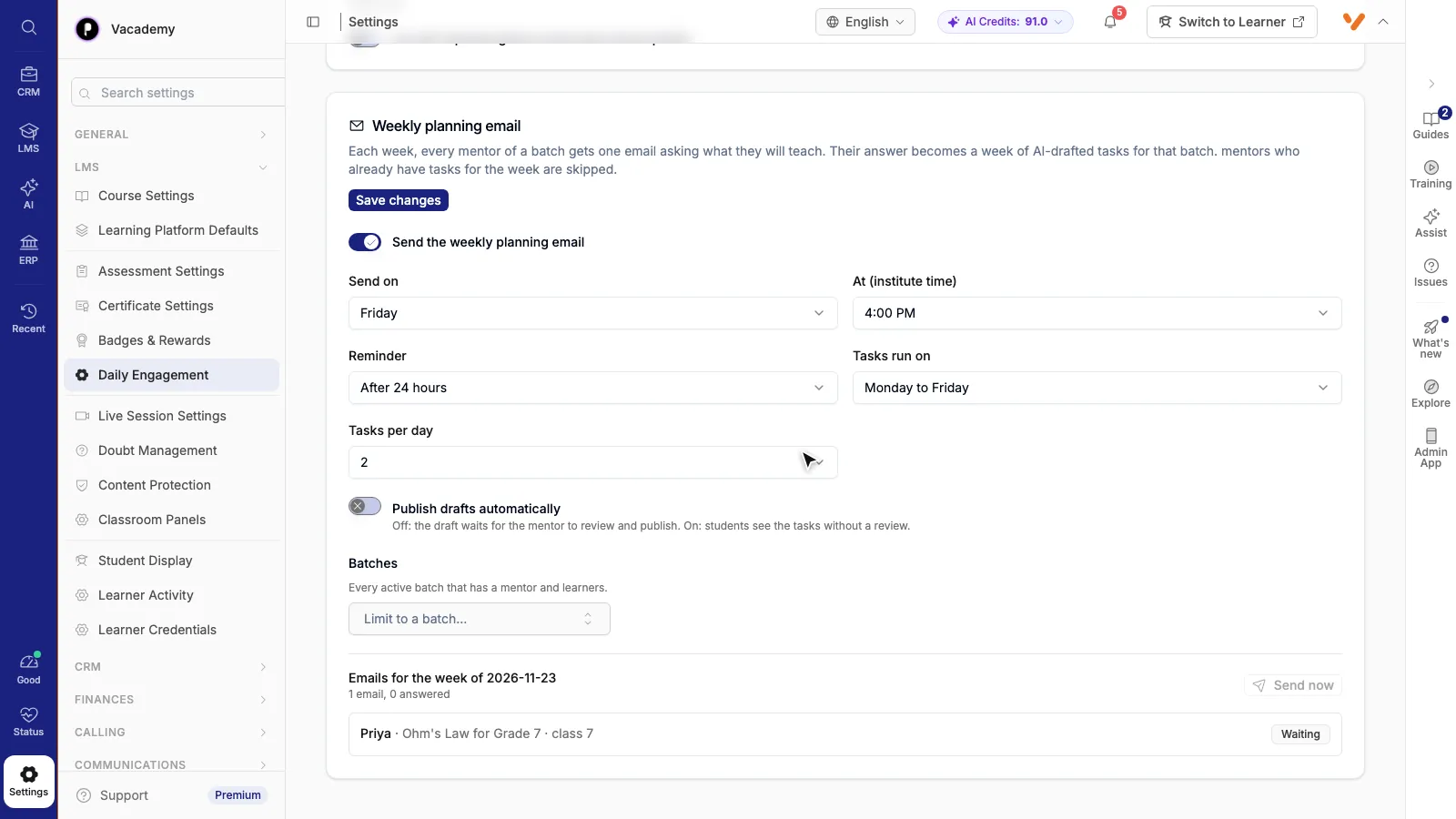
It is off until an admin switches it on in Settings, Daily Engagement, under Weekly planning email:
| Setting | Default |
|---|---|
| Send on | Friday |
| At (institute time) | 4:00 PM |
| Reminder | After 24 hours (or no reminder) |
| Tasks run on | Monday to Friday (or Monday to Saturday, or every day) |
| Tasks per day | 2 |
| Publish drafts automatically | Off: the draft waits for the teacher to review and publish |
| Batches | Every active batch that has a teacher and learners, or only the batches you pick |
What the teacher gets
Every teacher of each batch gets one email a week per batch: “What are you teaching… in the week of…?” Teachers who already have a plan running on that batch that week are skipped, and nobody is emailed twice.
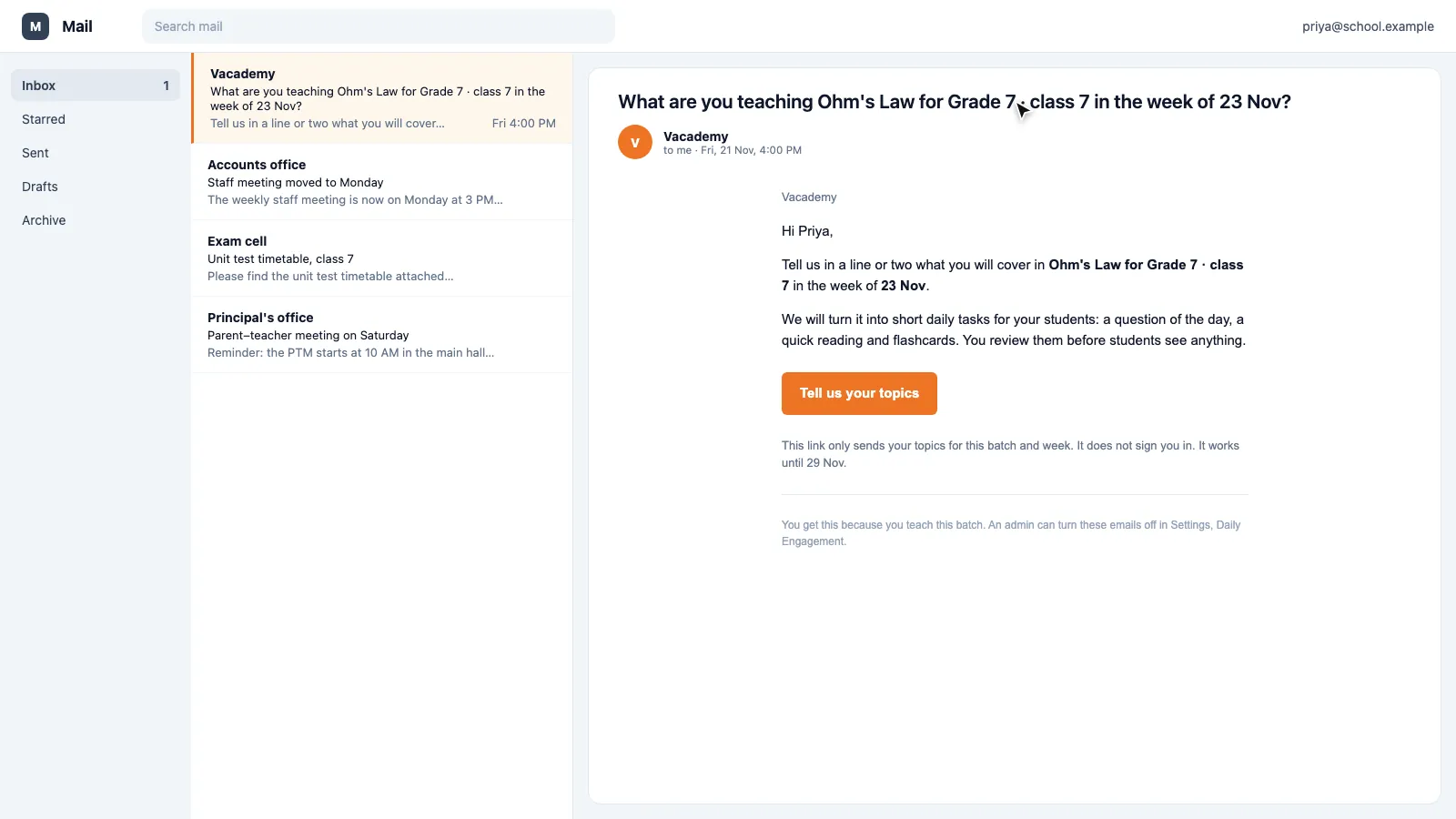
The button opens a one-box page. It needs no login, and it can only send topics for that batch and that week. The teacher types a line or two and presses Draft my tasks.
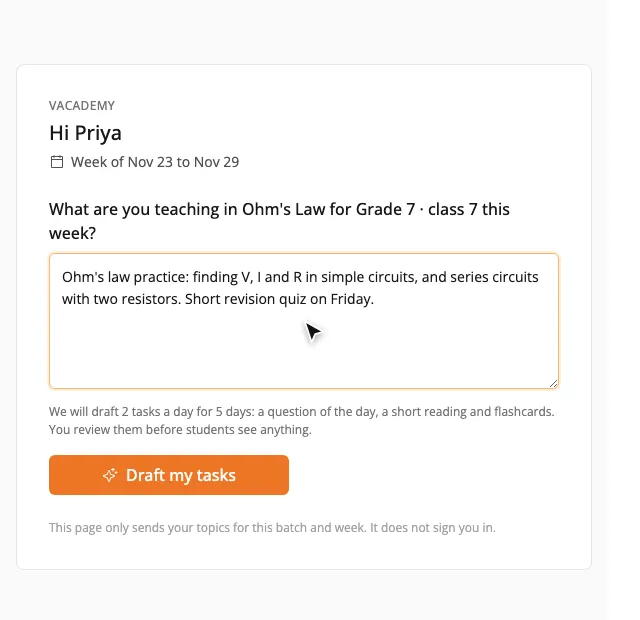
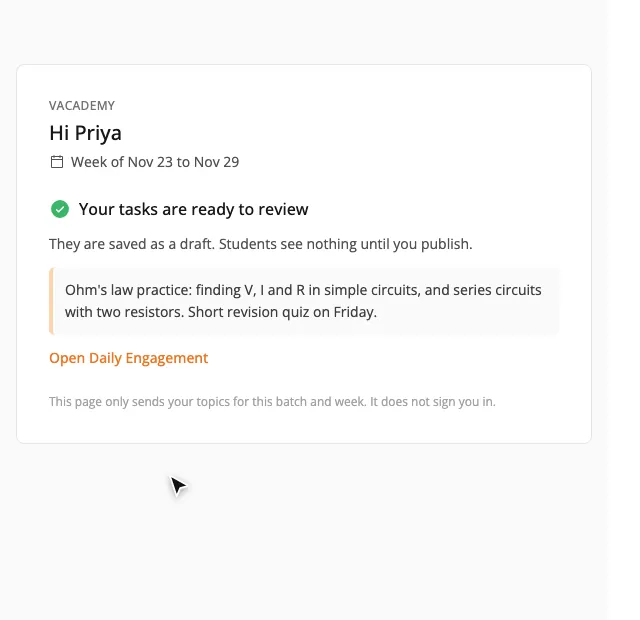
The AI drafts the week from those topics, using the same planner and the same credits as Plan with AI, and the teacher gets a “ready to review” email. With auto-publish off, the plan stays a draft until the teacher publishes it. If the institute is out of credits, the page says so and the teacher can send again later.
On the settings screen, each email shows its status: Waiting, Answered, Drafting, Draft ready, Published, Failed or No answer. Send now sends this week's emails straight away.
Flashcards, Poll and Game slides inside your courses
The same formats now work as course slides. In any chapter, press Add Slide and choose Flashcards, Poll or Game. A new slide starts as a draft, so an empty deck or poll never goes live by itself.
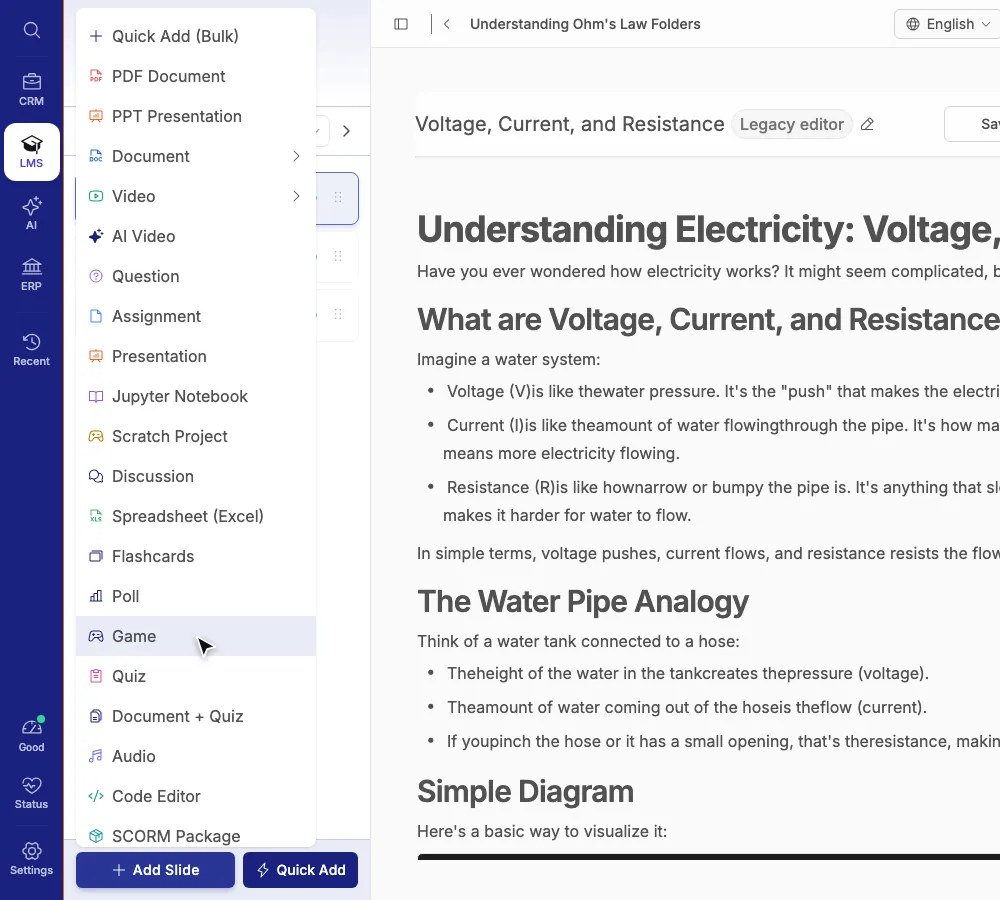
Flashcards
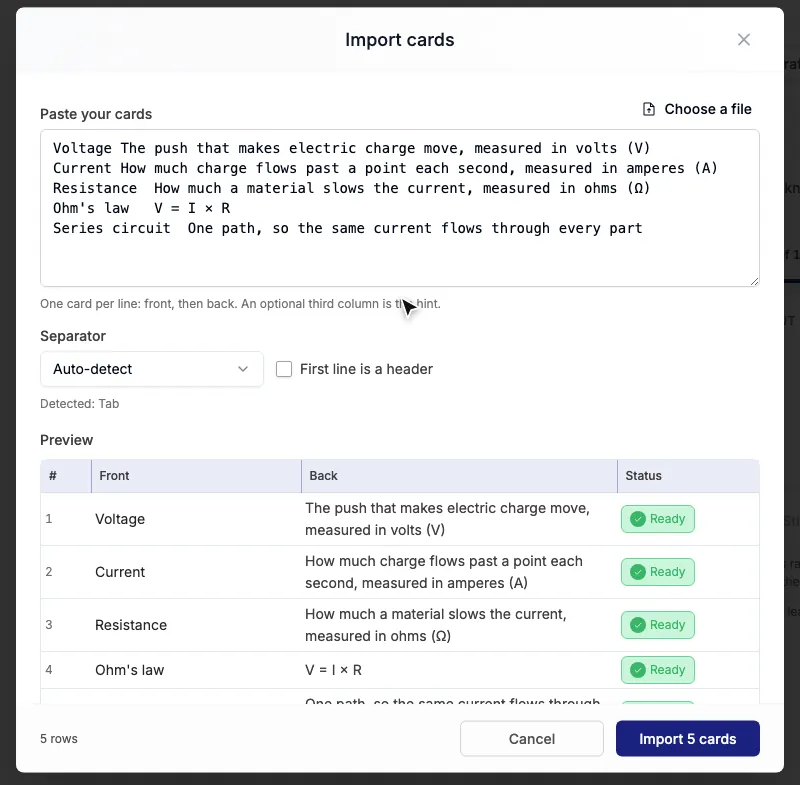
Same editor as the daily task. Use Import to paste a list, one card per line with the front and the back; the separator is detected for you. Learners flip each card and mark it Got it or Still learning; finishing the deck completes the slide.
Poll
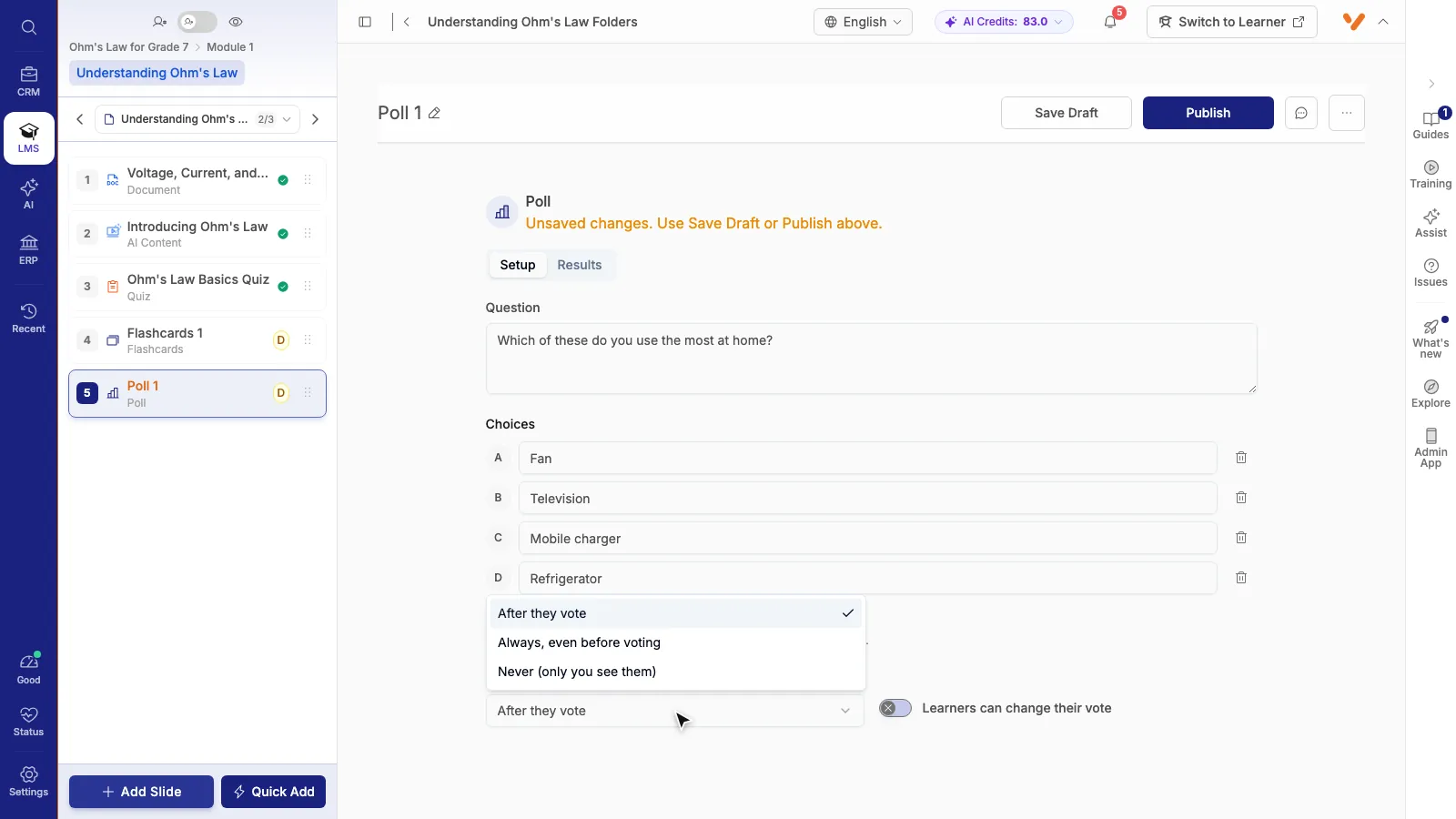
One question and 2 to 8 choices. Choose when learners see the results: after they vote, always, or never (only you see them). Switch on Learners can change their vote if they may change their mind. The Results tab shows the votes, batch by batch.
Game
Paste or upload your own HTML page, up to 2 MB, and set a top score and instructions. The preview runs it exactly as learners will. If the page reports a score, each learner's best is saved, capped at the top score, and listed on the Scores tab.
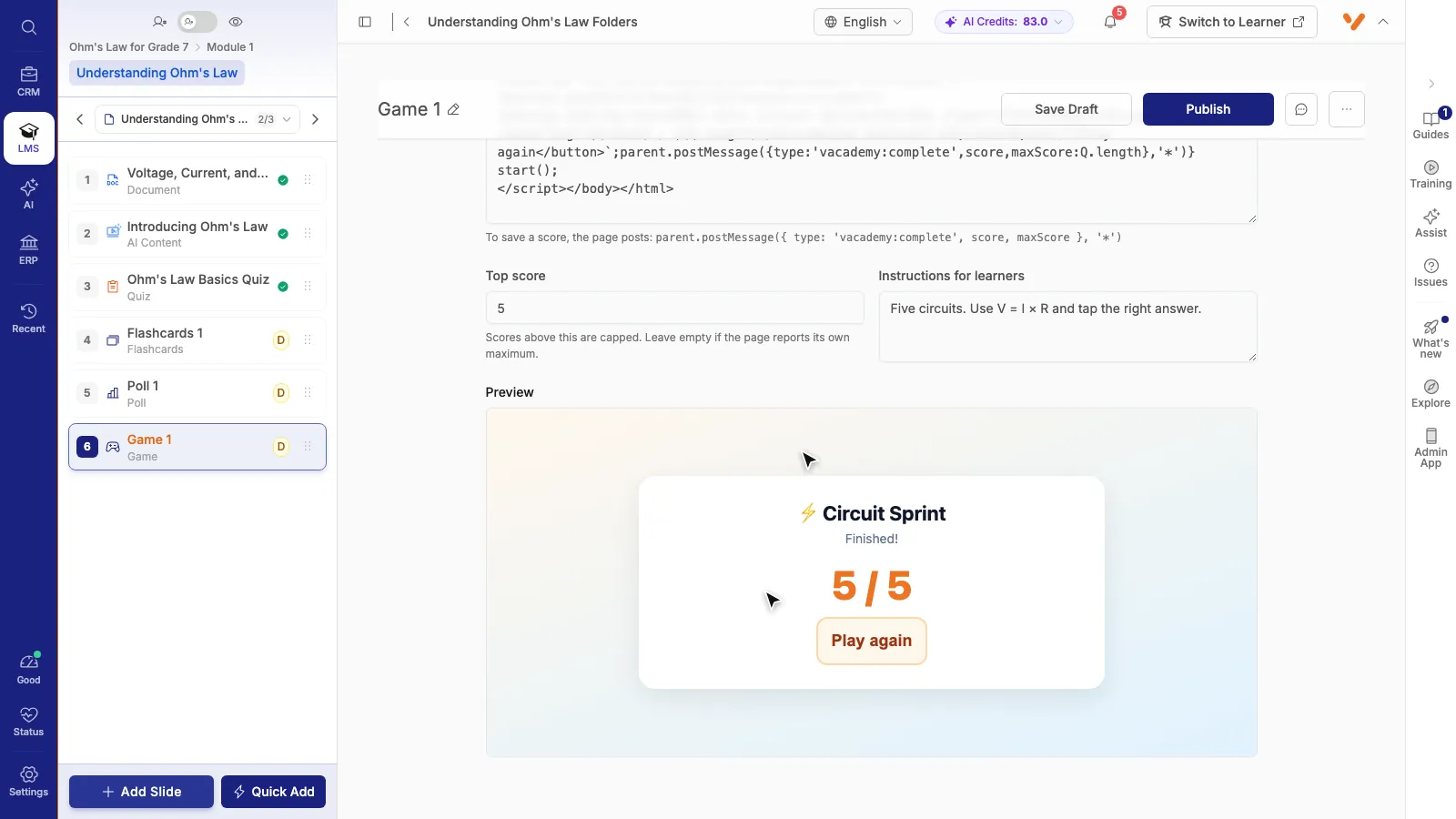
These slides earn no separate points; they count like any other slide toward course progress. Polls and games need an internet connection, because votes and scores are saved on the server.
Tips that work
Two tasks a day is plenty
A reading and a question take learners about three minutes. Three tasks a day across three batches is already too many.
Reveal answers in the evening
A fixed reveal time gives learners a reason to come back, and stops answers being shared in the class group.
Ground the AI in your chapters
Ticked chapters keep the questions on your syllabus and in your words.
Check Needs attention weekly
Message the learners who are behind before they stop opening the app.
Good to know
- Plans are per batch. Pick several batches and Vacademy makes one plan per batch. A learner in several batches sees one merged list, labelled by batch.
- The AI planner uses calendar dates. For Days after joining, build the plan with New plan.
- The weekly email is in English for now. Teachers who prefer another language can use Plan with AI, which offers many Indian languages.
- One email per teacher per batch. A batch with five subject teachers gets five drafts. The daily limit still protects learners.
- Pictures are not added to emailed drafts. Add them afterwards in the editor if you want them.
Want the Today card higher on the home screen, or a banner for your next batch next to it? See how to customize the learner home. To open a class discussion inside a course, see the discussion forum slide.
Questions institutes ask
Do learners see a plan while I am still editing it?
No. A new plan, and every AI draft, is saved as a draft that only staff can see. Learners see its tasks only after you press Publish, and only on the days you scheduled.
How many tasks will a learner see in a day?
At most five by default, across all of their batches. An admin can change this limit in Settings, Daily Engagement. Tasks hidden by the limit are not counted as missed.
What happens if a learner misses a day?
You choose for each plan. A task can expire when its window closes, stay open for catch-up with full points, or stay open for catch-up with fewer points. You set how many catch-up days are allowed and the percentage of points a late task earns. Catching up never repairs a broken streak.
Does Plan with AI cost credits?
Yes. The cost is shown before you start. In our test, a five-day plan with ten tasks was about 8 credits. A new version of a single task or a picture for a reading costs about 2 credits each. You are charged only for a draft that comes back.
Can the AI write in Hindi or another Indian language?
Yes. The planner offers English, Hindi, Hinglish, Marathi, Bengali, Gujarati, Punjabi, Tamil, Telugu, Kannada, Malayalam, Odia and Urdu, as well as Arabic, French, Spanish and German. The weekly planning email itself is in English for now.
Do teachers need to log in to answer the weekly planning email?
No. The link opens a one-box page that can only send topics for that batch and that week. It does not sign the teacher in and it never publishes anything. With auto-publish off, which is the default, the AI draft waits for the teacher to review it in the app.
Can a plan start from each student's joining date instead of fixed dates?
Yes. When you create a plan, choose Schedule by: Days after joining. Day 1 is the day each student joins the batch, so a student who joins in March gets the same first week as one who joined in January. Plans drafted with AI use calendar dates.
Do Flashcards, Poll and Game slides give points?
No. Inside a course they count like any other slide: finishing the deck, voting in the poll or finishing the game completes the slide. Points come from daily tasks. Game scores are reported by the game page itself, so they are shown to teachers but never used for points.
Want us to plan your first week with you?
Tell us a batch and what it is studying. We will set up the plan and the weekly email with you on a call.