At a glance
It is 7 pm on a Thursday. An online counseling psychology batch, with students from Pune, Nagpur and Indore, has just watched a lesson on exam anxiety. The teacher asks one question: what helps you feel calm before an exam?
On the live call, three confident students answer. Forty others stay quiet. In the batch’s chat group, the few replies that do come are buried under reminders by Monday.
The quiet students often had the most useful answers. They just did not want to say them in front of everyone, with their name on it.
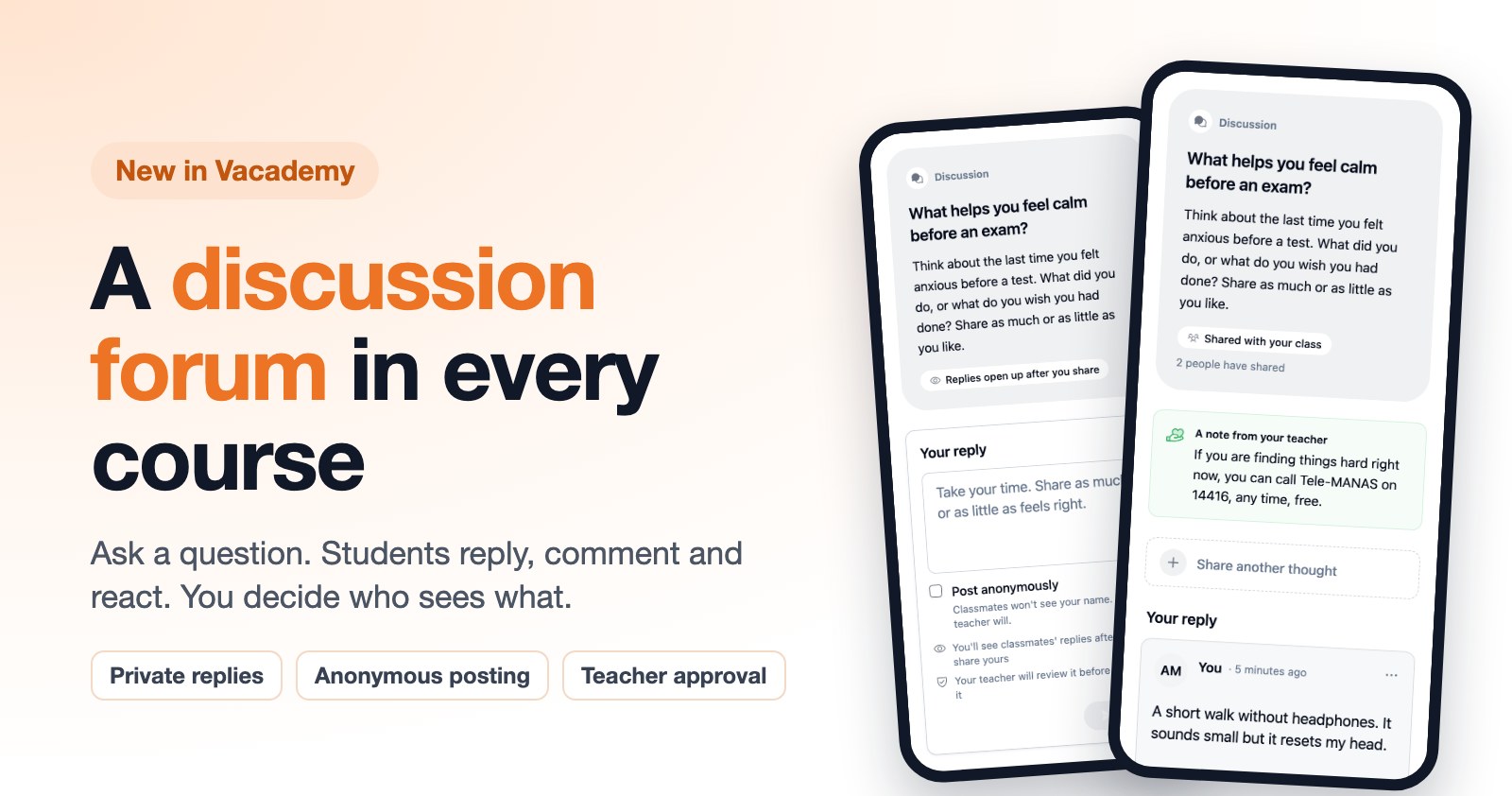
We built the Discussion slide for exactly this. The request came from an institute that teaches psychology and mental-wellbeing courses. Their students write about stress, sleep and pressure at home, so the teacher needed a calm place to ask, and full control over who reads what. It is now part of Vacademy for every institute.
Setting one up
A discussion is a lesson, so it lives where your other lessons live. There is no separate forum to open and no extra login for students.
Add the slide
Open a chapter, press Add Slide and pick Discussion. It sits in the chapter like any lesson.
Write the question
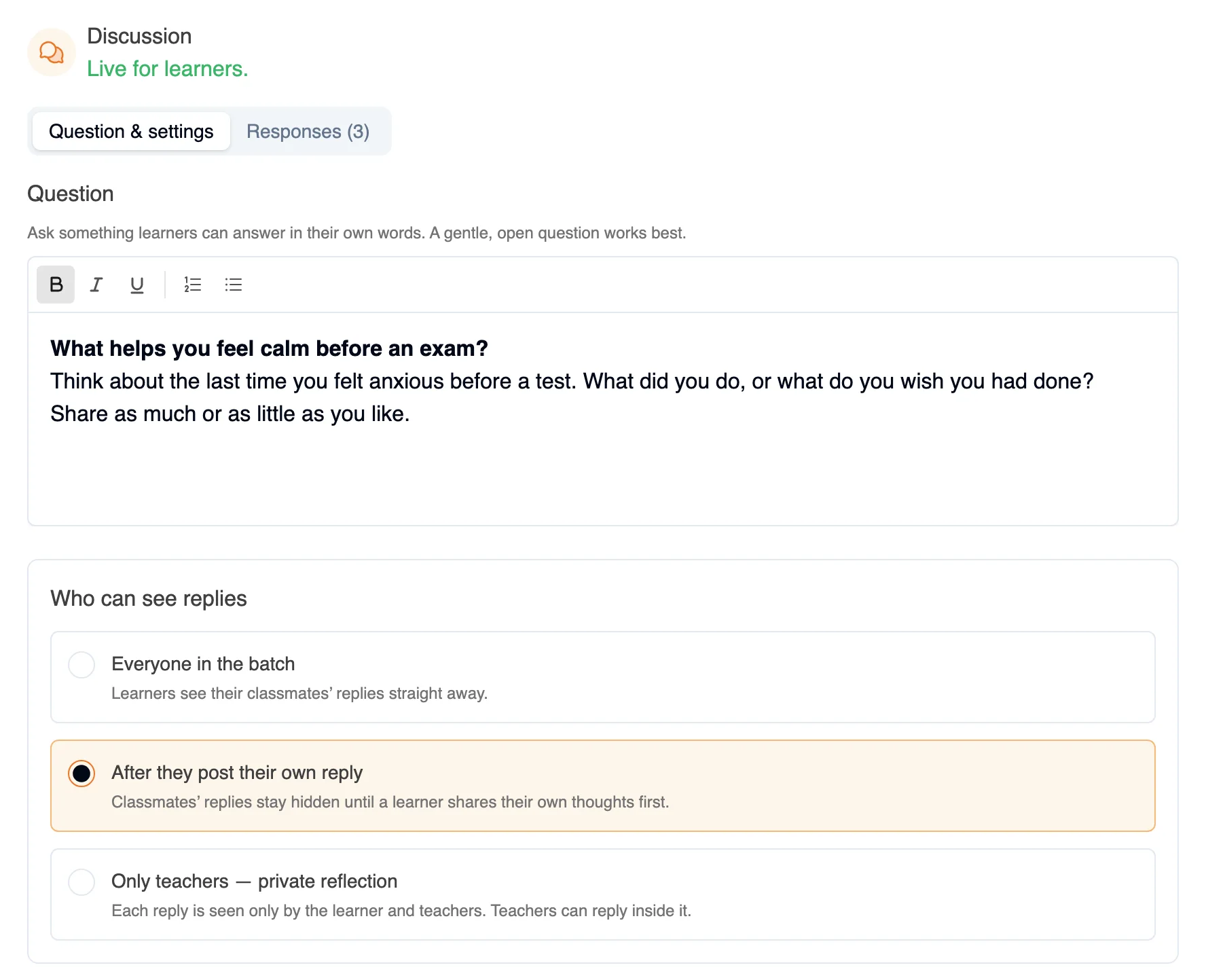
Bold, italics and lists are there for instructions. A gentle, open question works best.
Set the rules
Choose who can see replies, then switch comments, reactions, anonymity and approval on or off.
Publish
Save Draft keeps your work private. Students get the question and the rules only after you publish.
The big choice: who sees the replies
This one setting changes how a discussion feels. You set it for each question, not once for the whole course. Click through the three choices to see what a student sees.
Replies show for the whole batch straight away
Students read each other's answers, comment under them and react. This is the classic class forum.
Good for
Sharing tips, real-life examples, introductions in week one, resources students found.
The student is never left guessing. Above the reply box, one line says who will read the answer: “Your classmates and teacher will see your reply”, “You’ll see classmates’ replies after you share yours”, or “Only your teacher will see your reply”.
Six more switches, all yours
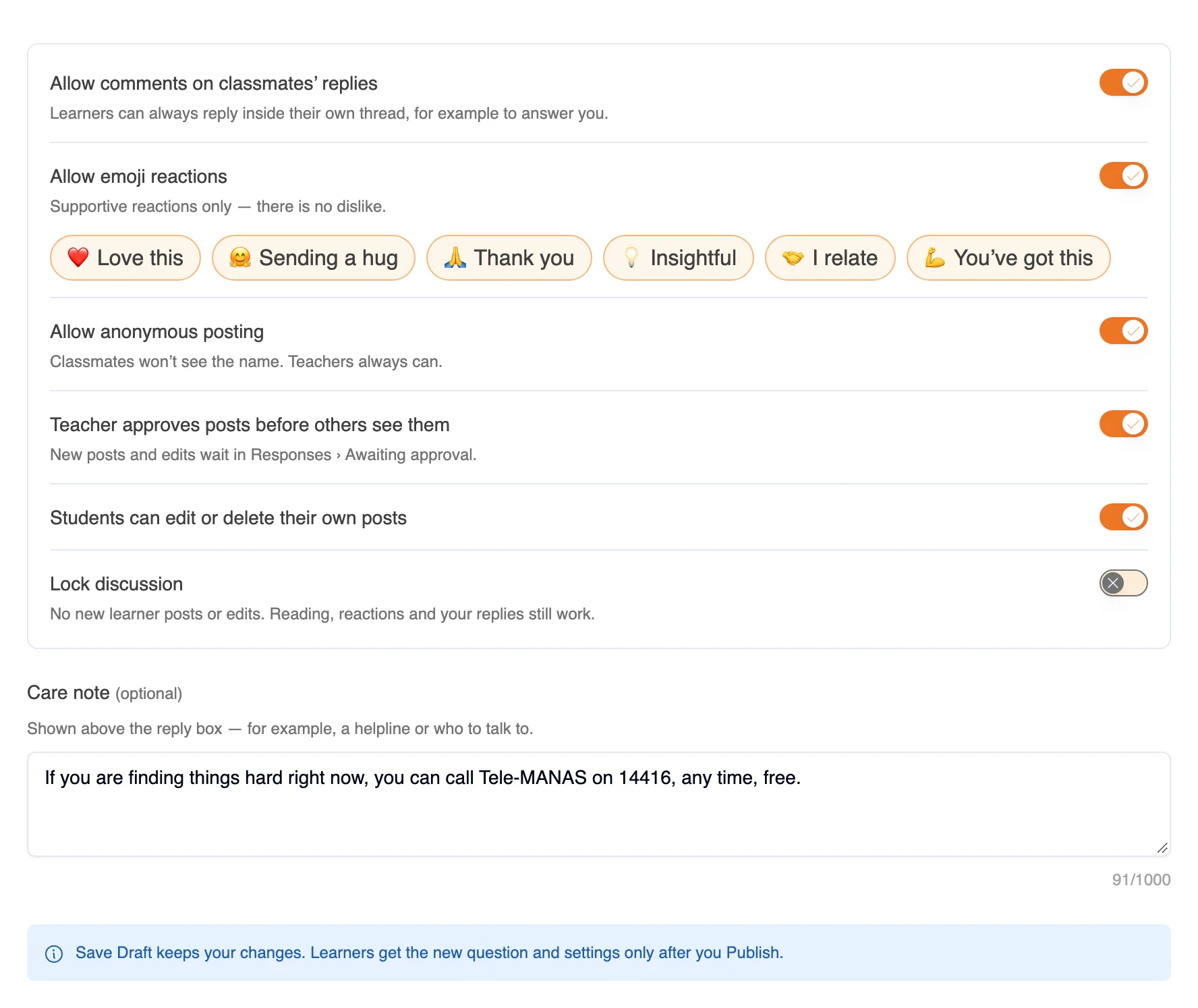
Under the visibility choice there are six switches. Each one is set per discussion, so a light “introduce yourself” thread and a serious reflection can follow different rules in the same course.
The reactions
Six ways to say “I hear you”, and no way to say “no”
Where a reply goes
Every rule is checked by Vacademy’s server, not just hidden on the screen. A student cannot get around “only teachers” by changing a setting in their own browser.
Student writes
Plain text, up to 5,000 characters. Anonymous if you allow it.
Teacher approves
Only when approval is on. Until then, the student sees “Waiting for your teacher's approval”.
The right people see it
Everyone, everyone who has replied, or only teachers, as you set.
Class responds
Comments and reactions, if you allow them. The teacher can reply or pin.
Built for topics that need care
Most forum tools are built for homework questions. A psychology or wellbeing course is different. A student may write about panic before exams, a hard week at home, or not sleeping. Four details matter here.
Anonymous to classmates, never to teachers
If a student writes something that worries you, you can see who it is and reach out. A forum where nobody can follow up is not safe for these topics. Students are told this plainly before they post.
Kind reactions only
Love this, Sending a hug, Thank you, Insightful, I relate, You've got this. No dislike, no score, nothing to compete on.
A care note above the reply box
An optional line of your own, up to 1,000 characters. Use it for a helpline, a counselor's email, or where to get help on campus.
Report, hide and approve
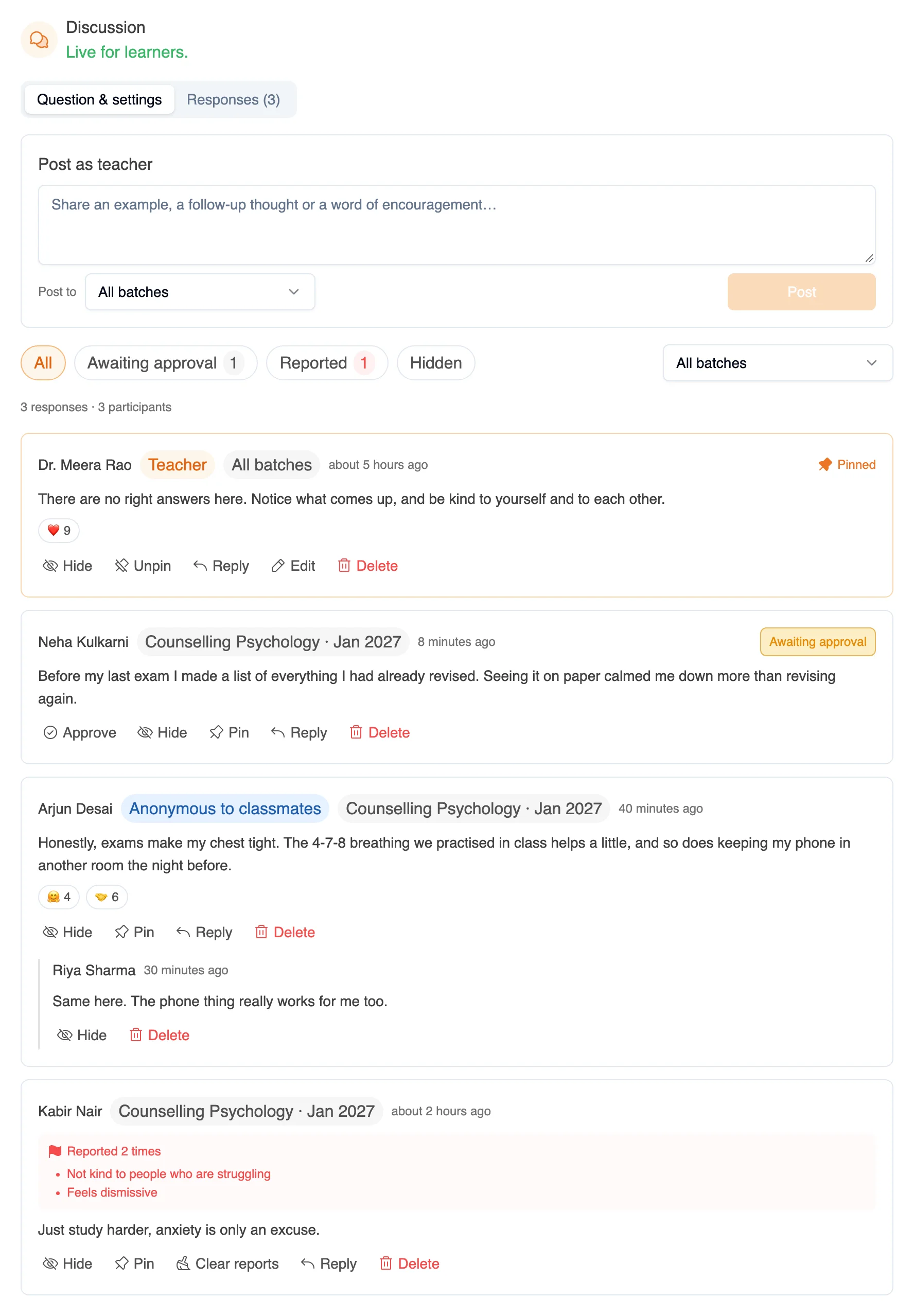
Students can report a post with an optional reason. You see the reasons and can hide the post, delete it or clear the reports.
For the care note, institutes in India can point students to Tele-MANAS, the Government of India’s free mental health helpline. It answers on 14416, at any hour. That is the example you see in the screens in this post.
What students see
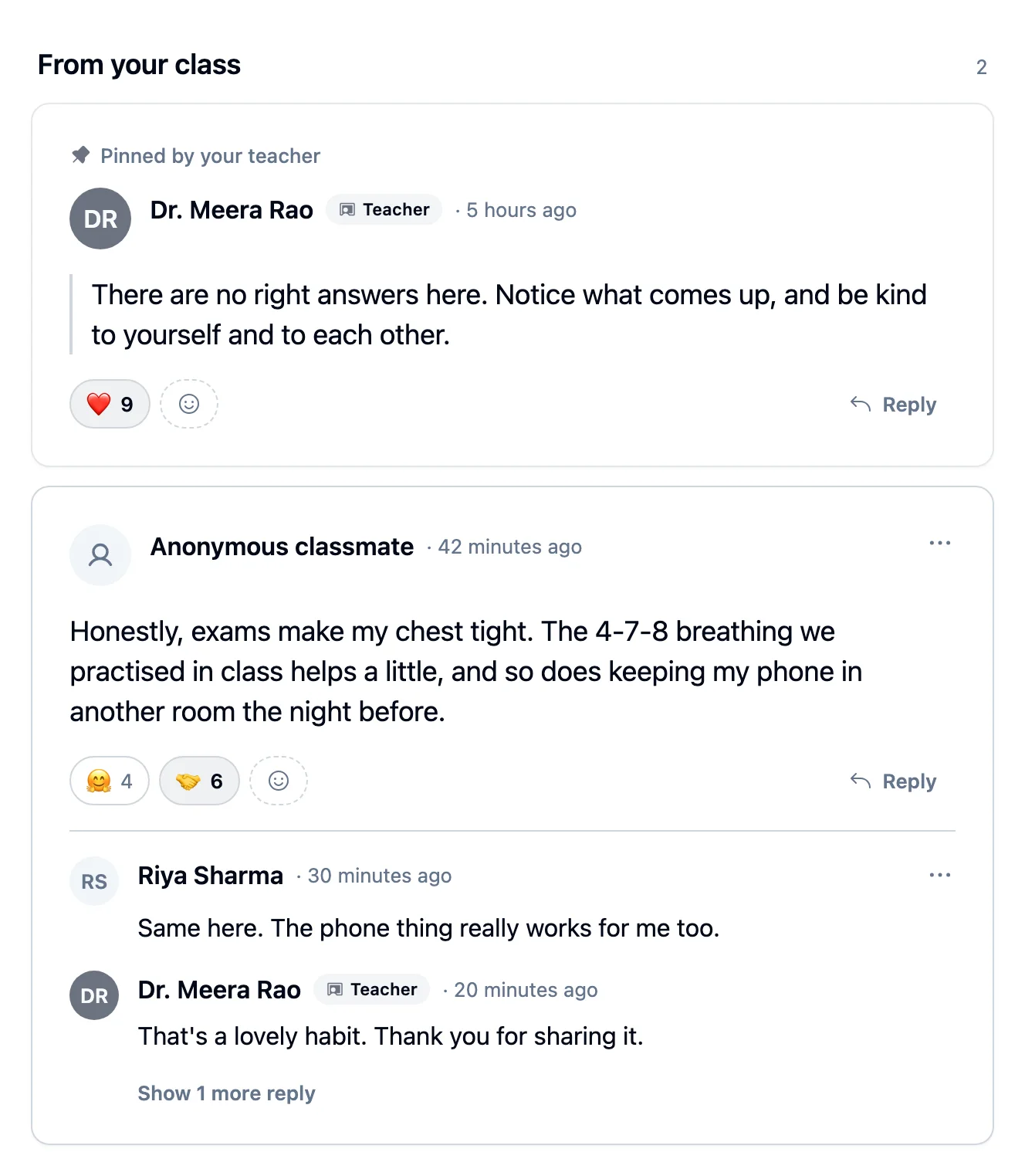
The student’s screen is ordered the way a person thinks: the question, then their own reply, then the class. The teacher’s posts carry a Teacher badge, and pinned posts stay on top.
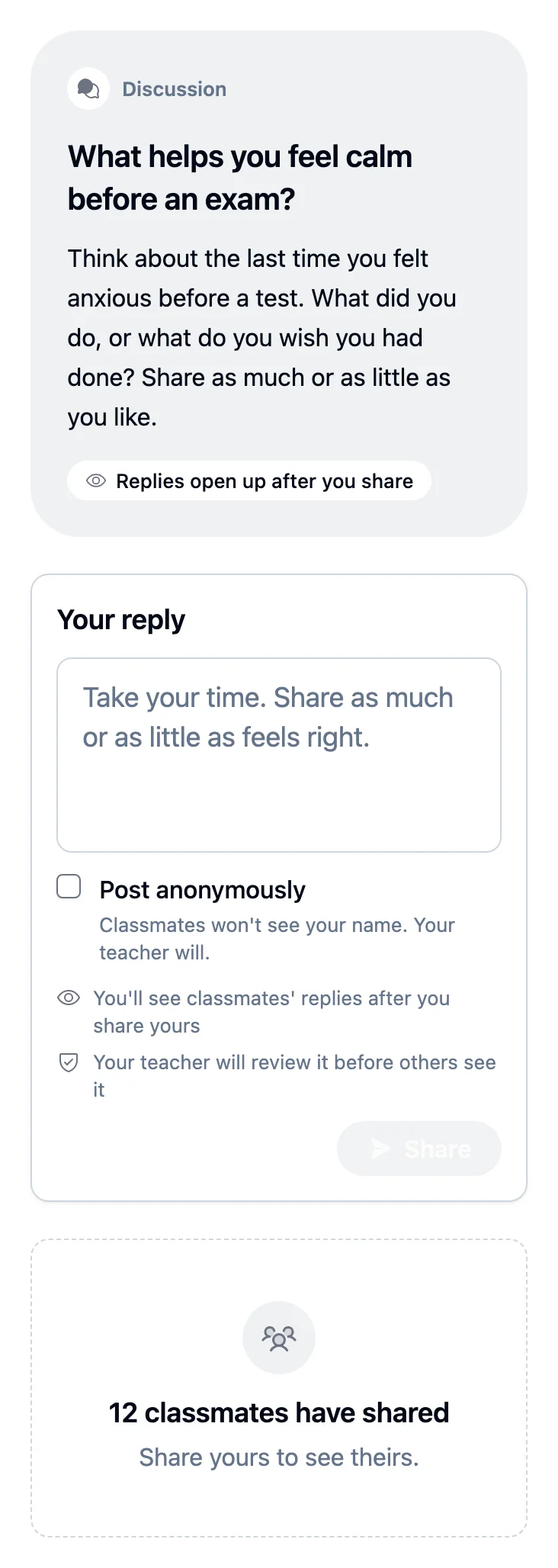
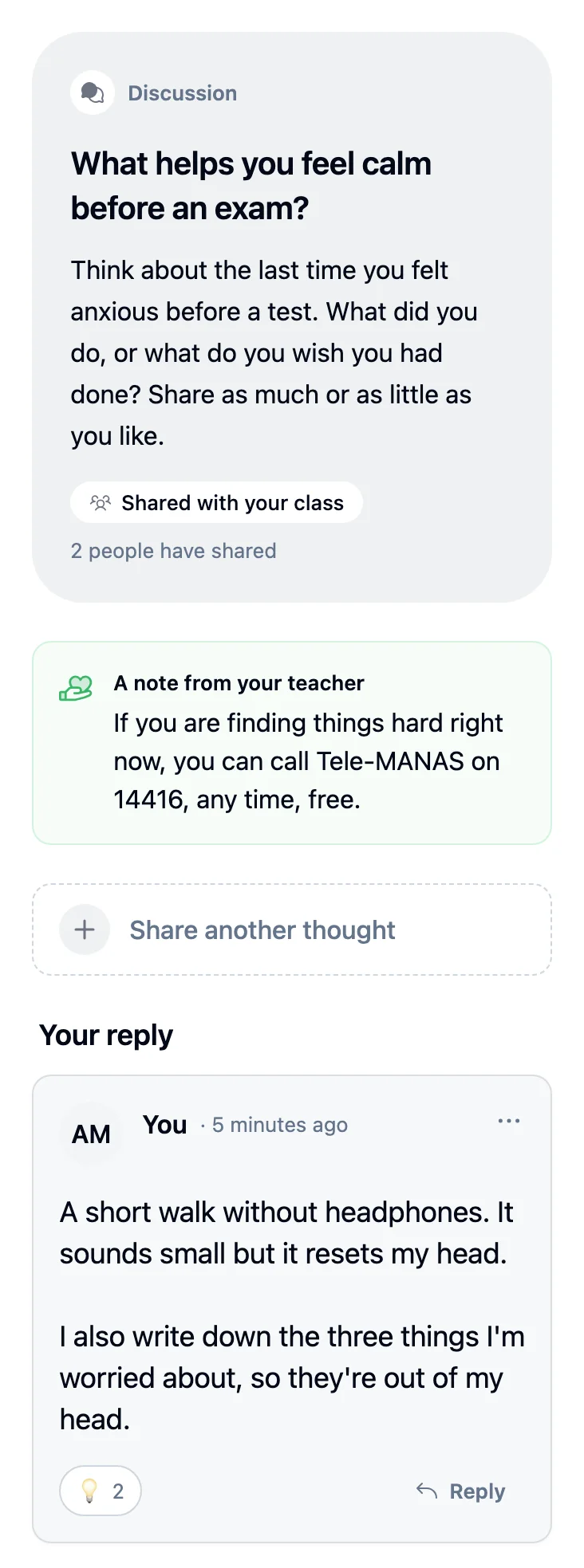
Students always know where their post stands. One waiting for approval says “Waiting for your teacher’s approval”. One a teacher has hidden says so, instead of disappearing without a word. Long comment threads fold after two comments, so the page stays easy to read on a phone.
Moderating, all in one tab
Next to the question, the Responses tab shows every reply across your batches, including the ones waiting for approval, the hidden ones and the reported ones. At the top, you can post as the teacher to one batch or to every batch at once, for a closing thought or a useful link.
Small details that save you work
Where it fits beyond psychology
The request came from a wellbeing course, but any subject where students learn from each other’s thinking can use it. A few questions that work well:
Psychology and wellbeing
Private reflections with teacher feedback, and anonymous sharing for topics like stress or sleep.
Teacher training
“Describe one moment this week when a student surprised you.” Peers learn from each other's classrooms.
Corporate and soft skills
“A customer is angry about a late refund. What do you say first?” Use After they reply so nobody copies.
Exam preparation
“Share one revision habit that works for you.” Toppers' habits reach the whole batch, not just their friends.
For institute owners, the point is simple. A discussion your students have in a chat group is lost by next month. A discussion inside the course stays with the lesson, counts towards progress, and is there for the next batch to learn from your best questions. A discussion sits beside the other lesson types, and private questions about a lesson still go through doubts.
What it does not do yet
- No alerts yet. Teachers are not notified of new replies, and students are not notified when a teacher answers. If approval is on, check the Responses tab often.
- Text only. Students cannot attach photos or files to a post.
- The browser first. We tested it in the browser on phones and computers. We are still checking the Android and iOS apps.
Questions institutes ask
Can teachers see who wrote an anonymous post?
Yes. Anonymous posting hides the name from classmates only. Teachers always see who wrote each post, so they can follow up with a student who needs help. Students are told this before they post.
Can one batch read another batch's replies?
No. Each batch sees only its own replies. A teacher can post to one batch or to every batch at once, and the Responses tab lets teachers filter by batch.
Does a discussion count towards course progress?
Yes. A discussion is a lesson like any other. It is marked complete when the student posts their first reply, and it counts in chapter and course progress.
Can I stop new replies after a deadline?
Yes, by locking the discussion. Students can then still read and react, but cannot post or edit. Teachers can still reply. Locking is done by hand; there is no timer.
Is there a dislike button or a ranking?
No. The six reactions are all supportive: Love this, Sending a hug, Thank you, Insightful, I relate and You've got this. The teacher chooses which of them appear. Nothing ranks students.
Can students attach photos or files?
Not today. Posts are plain text, up to 5,000 characters. The teacher's question can use bold, italics and lists.
What happens if I change a setting after students have replied?
Students get the new settings when you press Publish. Replies already written stay where they are, and the new rules apply to them from then on. For example, switching to private hides classmates' replies from each other.
Does it cost extra or use AI credits?
It uses no AI credits. Discussion is switched on for admins and teachers by default, and an admin can turn it off per role in the display settings.
Try it on one of your courses
We will add a discussion to one of your chapters and show your team how students reply.