It is 9:40 at night in Kanpur. A Class 10 student has the science PDF open on a phone and a paper notebook on the bed. They read a line, then copy it out by hand. Two days before the test, they will not remember which page it came from.
That is how many students still study from an LMS. The lesson lives on the phone. The learning lives somewhere else. Until this week, Vacademy had nowhere for a student to mark a line or write a thought. Now it does.
This post shows what we released, screen by screen. If you run an institute, it also shows what you control. The short answer: nothing to set up, and it is live now.
At a glance
What students can do now
We fixed reading first
A note tool is useless if the page is hard to read. Most study time on our platform goes to PDFs, and phones are a big share of it. So we started there.
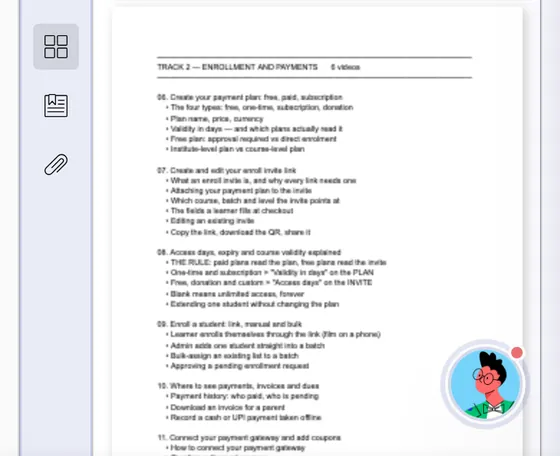
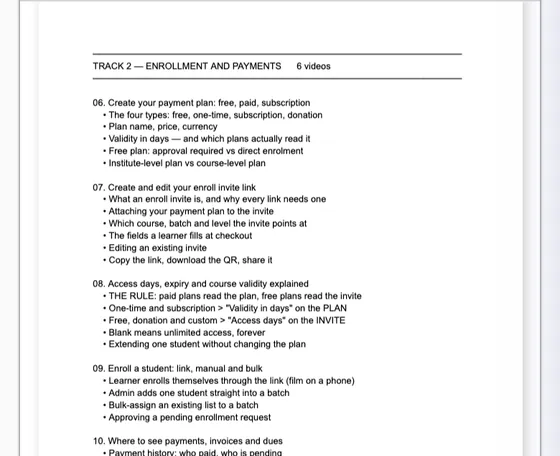
Below is the same page of the same PDF on the same phone width. On a 390-pixel-wide phone, the page went from 294 pixels wide to 345. That is about 17% wider, with no extra tapping. Students can now pinch to zoom as well.
Same PDF, same phone
Before and after
Before
Now
We also removed something that hurt quiet study. The app used to ask “are you still there?” after one minute without a tap, and covered the page after two. A student reading a long paragraph, or writing on paper, got interrupted for doing exactly the right thing.
Now idle time simply stops counting. The student sees nothing. Institutes that need the stricter check can still switch it on.
Highlight and note, in four taps
This is the core of the release. Press play below, or tap any step. These are real screens, using a sample science lesson.
Real screens
From a line in a PDF to a saved note
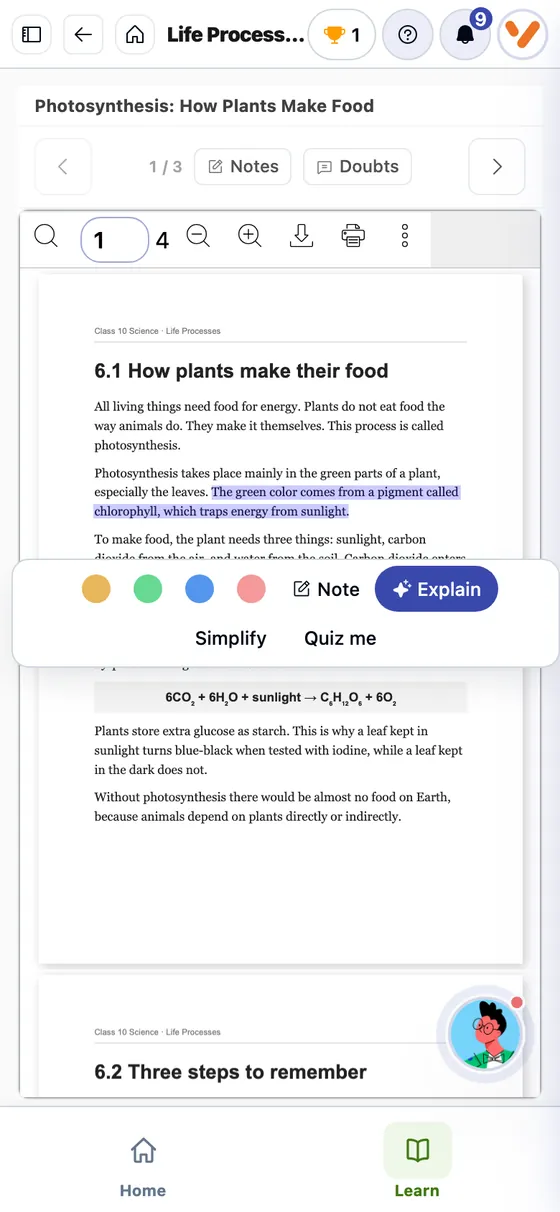
Short words work too. A student can mark just “mitosis” or a single formula. On a computer, the same panel opens beside the lesson, and the page refits so nothing is hidden behind it.
Scanned pages work too
Plenty of institute PDFs are photocopies of a textbook or a teacher’s handwritten sheet. To a computer, those pages are pictures. There is no text to select, so ordinary highlighting cannot work on them.
So we added Mark an area. The student drags a box around a diagram, a solved example or a paragraph, then adds a note if they want. They can also bookmark the whole page with one tap, and a ribbon appears on its corner.
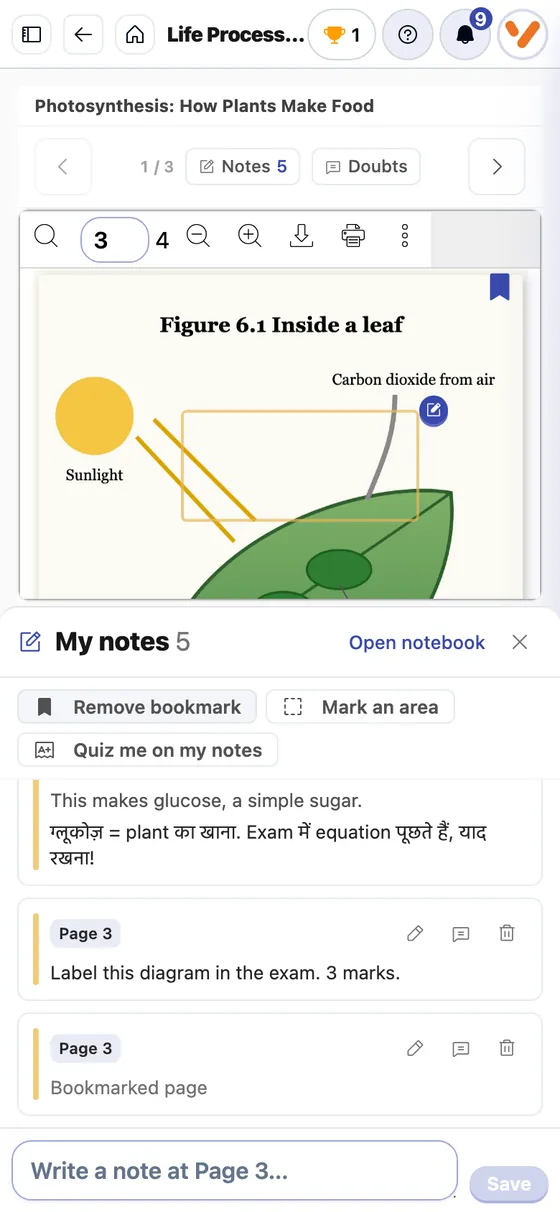
- The box stays on the right spot at any zoom.
- A note can be attached: “Label this diagram. 3 marks.”
- One tap bookmarks the page. One more removes it.
Video: note the moment, not just the words
Every student knows this problem. The teacher explains something perfectly at some point in a 40-minute class, and later nobody can find it.
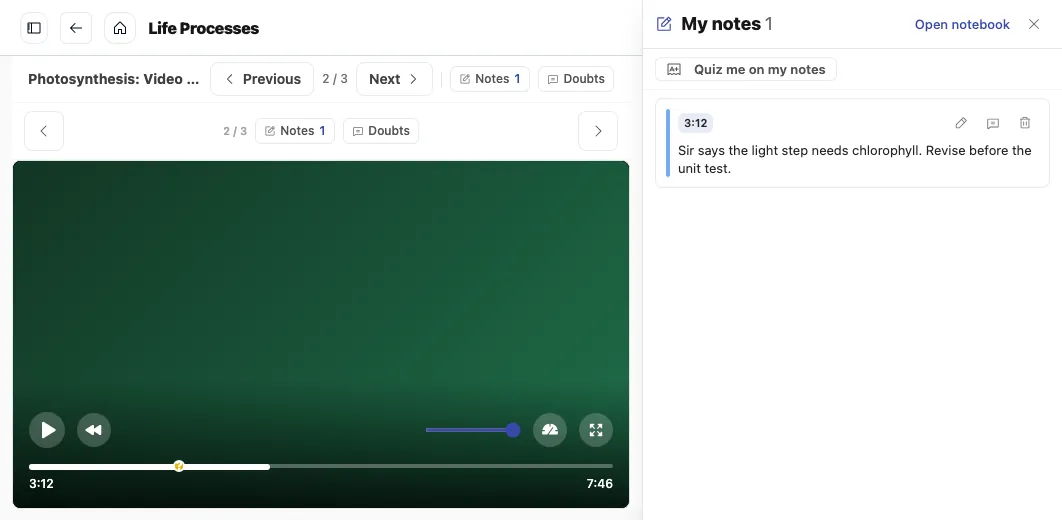
Now the student clicks Notes and starts typing. The video pauses by itself. The note saves the exact time, such as 3:12. Later, one tap on that time takes them back to the same moment. This works on YouTube, Vimeo and uploaded videos.
My Notebook: one place for everything
Marks spread across fifty lessons are not much use. So every student now has a page called My Notebook, in the menu under their profile.
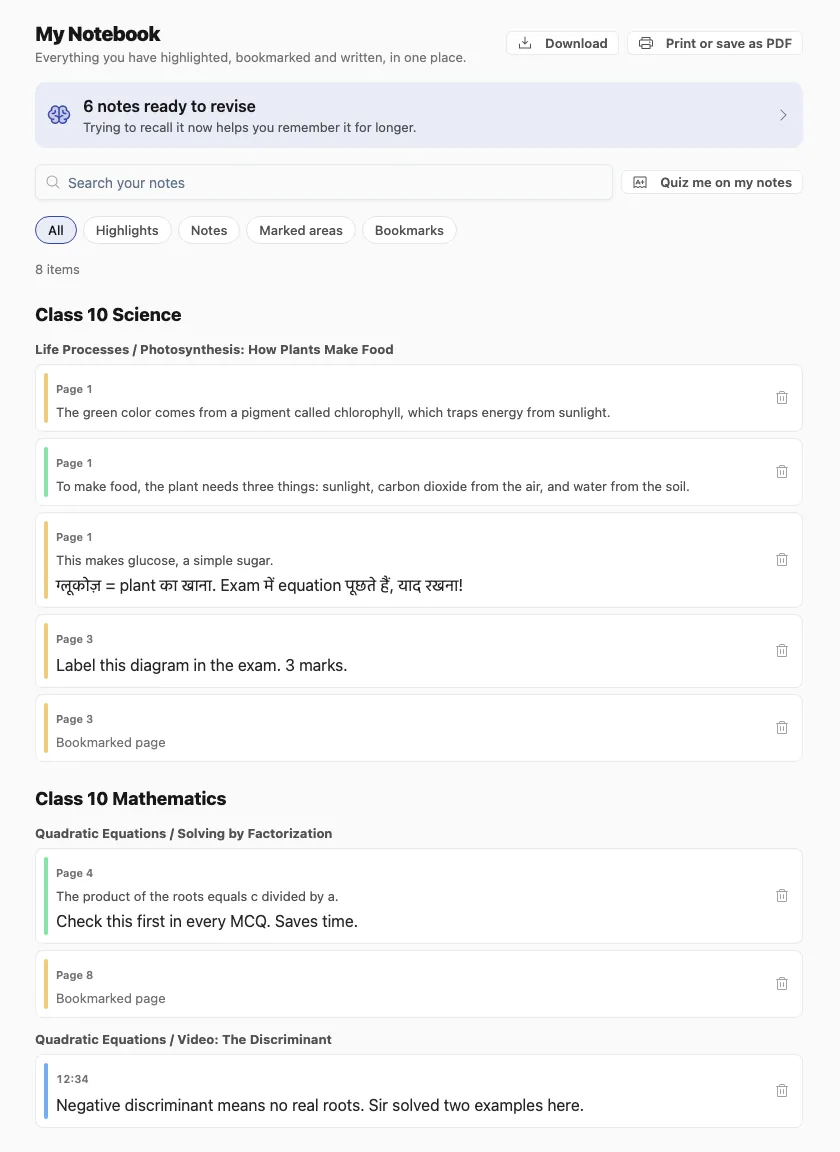
- By course and lessonSorted in reading order, by page or time.
- SearchFinds words in quotes, notes and lesson names, in Hindi too.
- FiltersHighlights, notes, marked areas or bookmarks.
- Open the exact spotTap a note to open that lesson at that page or moment.
- Take it awayDownload a file, or print and save as PDF.
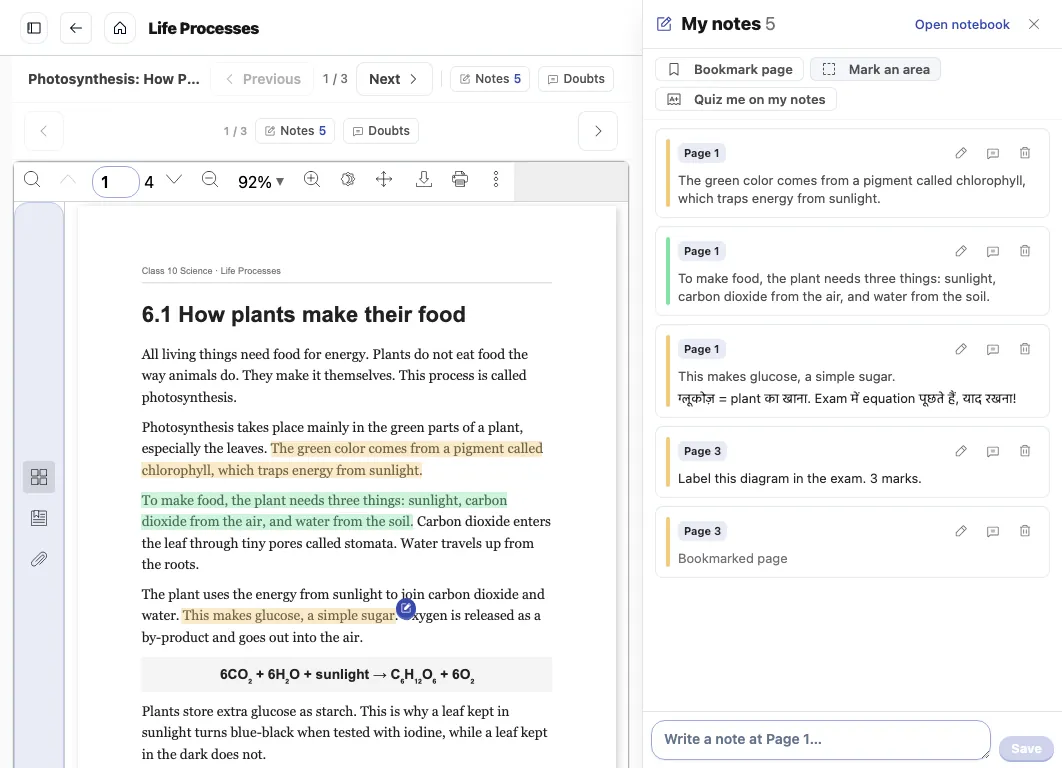
Export works even if your institute blocks PDF downloads. It holds the student’s own words and the lines they quoted, never images of your pages. Here is the real file:
# My Notebook

## Class 10 Science

### Life Processes / Photosynthesis: How Plants Make Food

> [Page 1] The green color comes from a pigment called chlorophyll, which traps energy from sunlight.

> [Page 1] This makes glucose, a simple sugar.
ग्लूकोज़ = plant का खाना. Exam में equation पूछते हैं, याद रखना!

[Page 3] Label this diagram in the exam. 3 marks.
The part most tools skip: bringing it back
Here is an uncomfortable fact. A well-known review of study methods rated highlighting and rereading as low value, even though most students rely on them. Testing yourself and spacing out your practice rated highest.
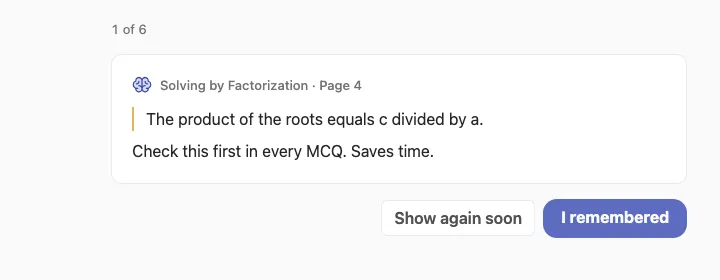
So a highlight should not be the end of the story. In Vacademy it is the start. Every highlight and note comes back for revision the next day. If the student remembers it, the gap grows. If they forget, it returns the next day again.
How revision is spaced
Remember it, and it comes back later
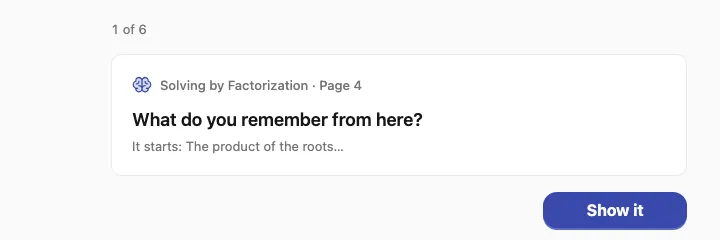
A review does not just show the note again. It first asks, “What do you remember from here?” The student tries to recall it, then taps Show it. They mark whether they remembered, and that decides the next date.
If your institute uses the AI tutor, there is a faster route too. Quiz me on my notes sends the student’s own marks to the tutor, which writes a quiz from them. In our test it made five questions from four notes, in about half a minute.
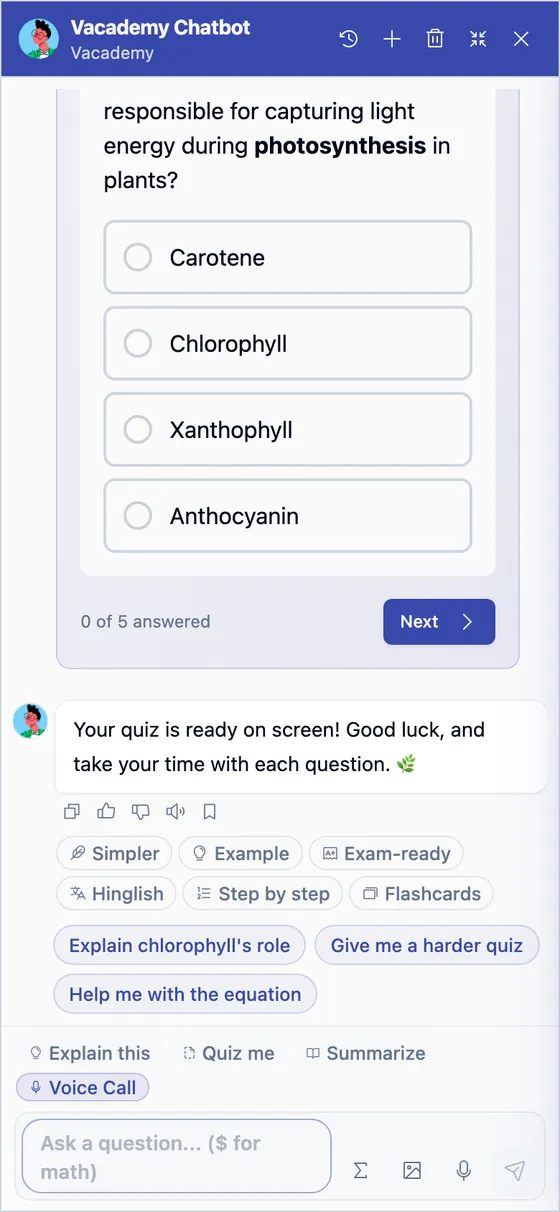
The quiz is about what this student found important, not a generic chapter test. It also works from one lesson’s panel or from the whole notebook.
The student’s notes go to the tutor only when they press this button.
Doubts now start from the exact line
“I did not understand the second point” is hard for a teacher to answer. Which second point, in which lesson?
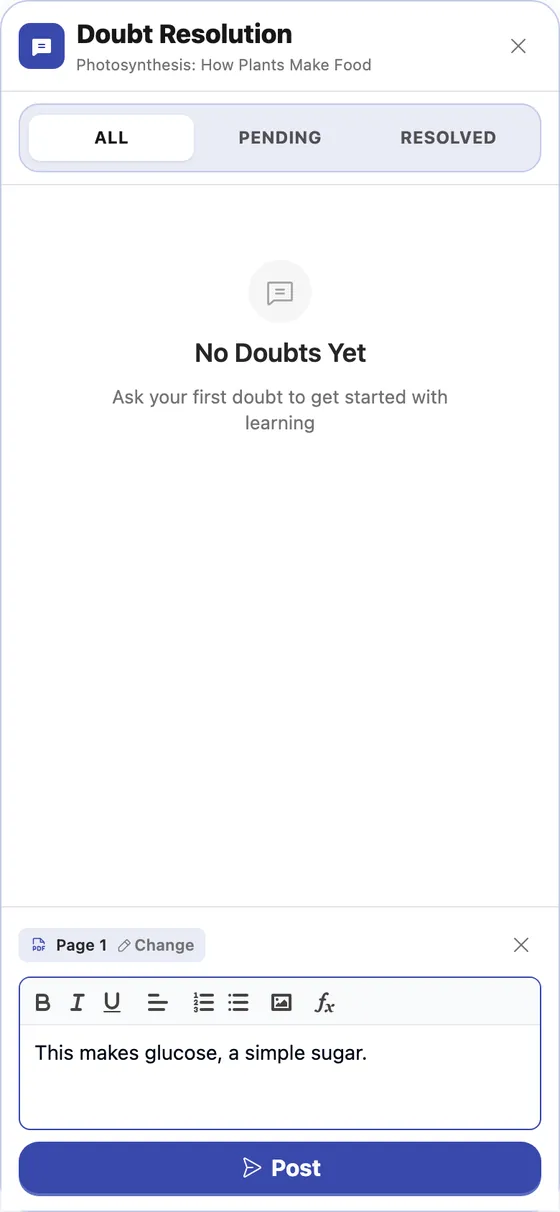
Now every note has a doubt button. Tap it and the doubt box opens with the quoted line and the page already filled in. The student adds their question and posts. We also fixed a layout problem on phones, where the Ask a Doubt button could sit behind the bottom bar.
What the teacher gets
The exact line and the page number, with no back and forth about what the student meant.
It works when the internet does not
Students in small towns study on weak connections. A note must not vanish because the network dropped for ten seconds.
On a bad connection
The note is safe at every step
Student writes
The note shows right away.
Network drops
It stays on the device, with a small message saying so.
Network returns
It is sent by itself, and never saved twice.
What changed, side by side
For institute owners: what this means, and what you control
The fear is worth naming: will this let students copy our content, or get in the way of tracking? No. Your protection rules stay as they are, and tests stay closed.
What you gain is a reason to study inside your platform. In a batch of sixty, the students who keep paper notes today have their revision outside your system. Once their marks live in your app, the place they go the night before a test is also yours.
One honest limit. Some lessons are built as interactive pages. There, a highlight is saved in the notebook but is not painted on the lesson. We are still testing the Android and iOS apps, so treat the browser as the supported route for now.
Questions institutes ask
Can teachers or admins read a student's notes?
No. Notes are private to the student. Every read and write is tied to the student's own login, and there is no screen that shows them to staff.
Do we need to set anything up?
No. Notes are on for every institute by default, on every PDF, document and video lesson. An admin can switch them off for the whole institute in the student display settings.
Are notes available during a test?
No. Notes do not appear on quizzes, assessments or assignments, so they cannot be used during graded work.
We block downloads. Can students still export their notes?
Yes. A student can export their own notes and the lines they quoted. The export never contains page images, so your course PDFs stay protected.
Does highlighting work on scanned PDFs?
A scanned page has no text to select, so students use Mark an area instead. They drag a box around the part they want and can add a note to it.
What happens if the internet drops while a student is writing?
The note is kept on the device and sent when the connection returns. A retry never creates a second copy. Logging out clears anything that was not sent.
Does this work in our Android and iOS apps?
It is live in the browser on phones and computers. We are still testing the Android and iOS apps, and exporting notes may not work there yet.
See it on your own lessons
We will open one of your PDFs and show your team how students would use it.