Key takeaways
- Vacademy's Course AI turns a short description into a full course: outline, lessons, videos, quizzes and assignments.
- You stay in control. Approve the outline first, then review every page. Written text is always editable.
- Build from your own PDFs, slides or a YouTube playlist, or start from a description alone.
- The same platform then runs the course: batches, live classes, tests, reports, certificates, admissions and fees.
- AI saves the drafting time. A teacher still checks every lesson before students see it.
You can now create online courses using AI. Vacademy's Course AI takes a short description of your course and writes the outline, the lessons, the videos, the quizzes and the assignments. You review and edit each part, then publish.
This guide shows how it works in Vacademy, screen by screen: what you type, what you can set, what the AI produces, and how the finished course is delivered to students. It is written for teachers, coaching institutes, schools and EdTech businesses.
What Is AI-Powered Online Course Creation?
AI-powered online course creation means using AI to draft a course for you: the outline, the lessons, the videos and the quizzes. A teacher then checks and edits the draft. The AI does the first pass. The teacher decides what is correct and what students need.
In Vacademy this is called Course AI. The final course has the same structure as one you build by hand, so you can mix the two. Use AI to draft a chapter, then add your own video to it.
Inside Vacademy
The AI course builder, in four stages
- 1
Give the brief
Describe the course. You can add the learning results, level and audience.
- 2
Approve the outline
Edit titles, add or delete sections. Check it well: the structure locks after this.
- 3
Review the content
Notes, video scripts, diagrams and code appear page by page. Edit or redo any block.
- 4
Finish and publish
Edit the text freely, swap in your own media, then publish or save it for review.
Benefits of Creating Online Courses Using AI
Here is what you get when you build a course with Vacademy's Course AI.
Faster course development
Course AI writes the outline and a first draft of every page, so you edit instead of starting from a blank page.
Built from your own material
Start from a description, or give it your syllabus, slides or a YouTube playlist so the course follows your teaching.
Quizzes and assignments included
Choose a mini quiz after every topic or one per chapter, and an auto-made assignment. Written answers can go to AI evaluation.
More than one language
The AI video settings include a language choice, and Vsmart Lecturer plans lectures in English and Hindi.
One platform from draft to delivery
The finished course sits next to batches, live classes, reports and fees, so you do not move it to another system.
How to Create Online Courses Using AI: Step-by-Step Guide
Seven steps take you from an idea to a live course. Each one shows what Vacademy's AI does and what you do.
The whole method
Seven steps: what Vacademy's AI does and what you do
- 1Plan the courseAI · Takes your description, level and audienceYou · Decide who it is for and what they will be able to do
- 2Generate the outlineAI · Writes every chapter and topic titleYou · Edit, add or delete, then approve. The structure locks
- 3Create the contentAI · Drafts notes, video scripts, diagrams and codeYou · Edit or regenerate any block
- 4Add videos and materialsAI · Makes narrated videos and imagesYou · Choose voice and length, or add your own media
- 5Add quizzes and testsAI · Writes quizzes, assignments and question papersYou · Check every question and answer
- 6Set up deliveryAI · Runs batches, live classes and reportsYou · Choose the structure, the batches and who can see what
- 7Launch and improveAI · Publishes to the catalogue and tracks progressYou · Read the reports and fix the weakest lesson
Step 1: Plan Your Course Topic and Audience
Decide who the course is for and what they should be able to do at the end. Then write it as a short brief. The only field Vacademy requires is the course description. You can also add learning outcomes, the skill level, the audience and any extra instructions. A clear brief gives a better outline. Here is one you can copy.
A brief for Course AI
Create a 6-week Class 11 Physics course on Laws of Motion for CBSE students.
Students are moving from Hindi medium to English, so use simple words.
Each chapter should have short notes, a mini quiz and one numerical to practice.
By the end, students should be able to solve unit-test numericals on motion, force and friction.
Step 2: Generate a Course Outline Using AI
Open Course AI and paste your brief into the box. Below it, set the size: skill level, number of chapters, how long the course should run and how many slides each chapter gets. The Build from option lets you give the AI your own material, such as a PDF syllabus, your slides or a YouTube playlist, so the course follows your teaching. Without it, the AI writes from your description alone.
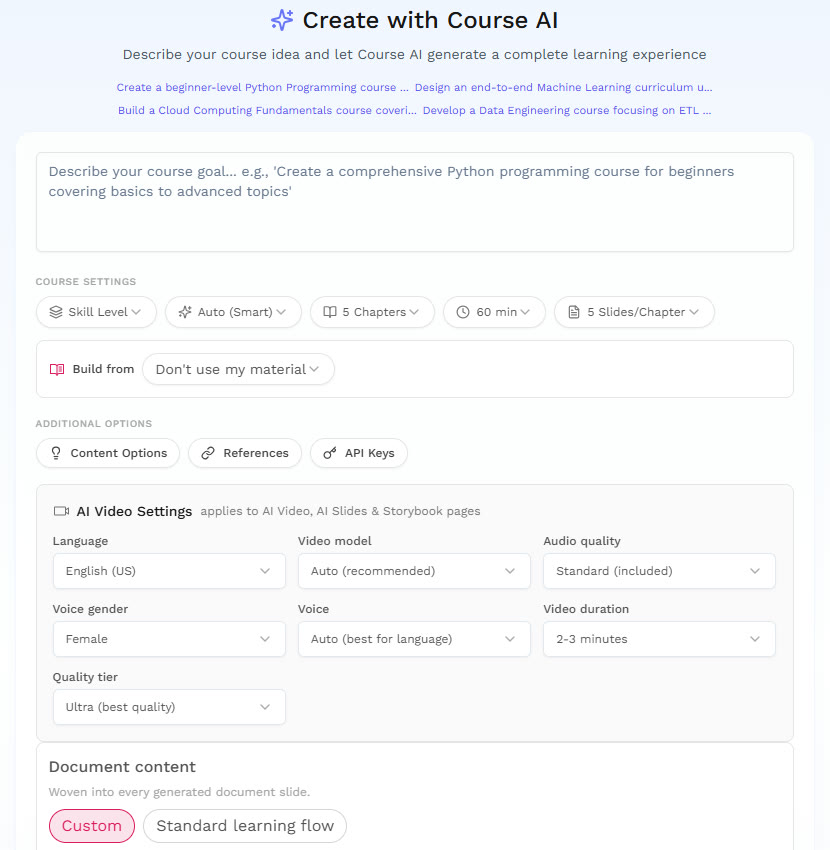
Press Generate Course Outline. You get the chapters and topics first, with no content yet. Edit any title, add a section or delete one. When you approve the outline, Vacademy warns you that the structure is now locked, so check it well.
Inside Course AI
Everything you can set before you press Generate
- 1
Describe
One box for your course goal. This is the only field you must fill.
- 2
Course settings
Skill level, chapters, duration and slides per chapter.
- 3
Build from
Use your own material, or none.
- 4
AI video settings
Language, video model, audio quality, voice gender, voice, video duration and quality tier.
- 5
Document content
Short notes, why it matters, high-yield point, visual or process, application, flashcards, quiz, summary, practical examples, interactive games.
- 6
Course structure
Mini quiz per topic or per chapter, auto assignment, chapter video, AI teacher, and how to treat figures.
Step 3: Create Course Content With AI
Next, the AI writes the content for each page in your outline. Depending on the subject, that can be instructional text, video scripts, code snippets and diagrams. In the Course AI screen you choose what goes into each lesson: short notes, flashcards, a quiz, practical examples, a summary or an interactive game.
You can edit or regenerate any block. Written text stays fully editable, so you can fix the tone, the level and the examples. This is the step where you check the facts and add your own explanations.
Step 4: Add AI Videos and Learning Materials
In the AI Video Settings you choose the language, voice and video duration, and a quality tier. The AI Video Generator then makes a narrated video with captions for each lesson. Videos and images made this way can be regenerated up to two times. You can also upload your own video, PDF or slides at any point.
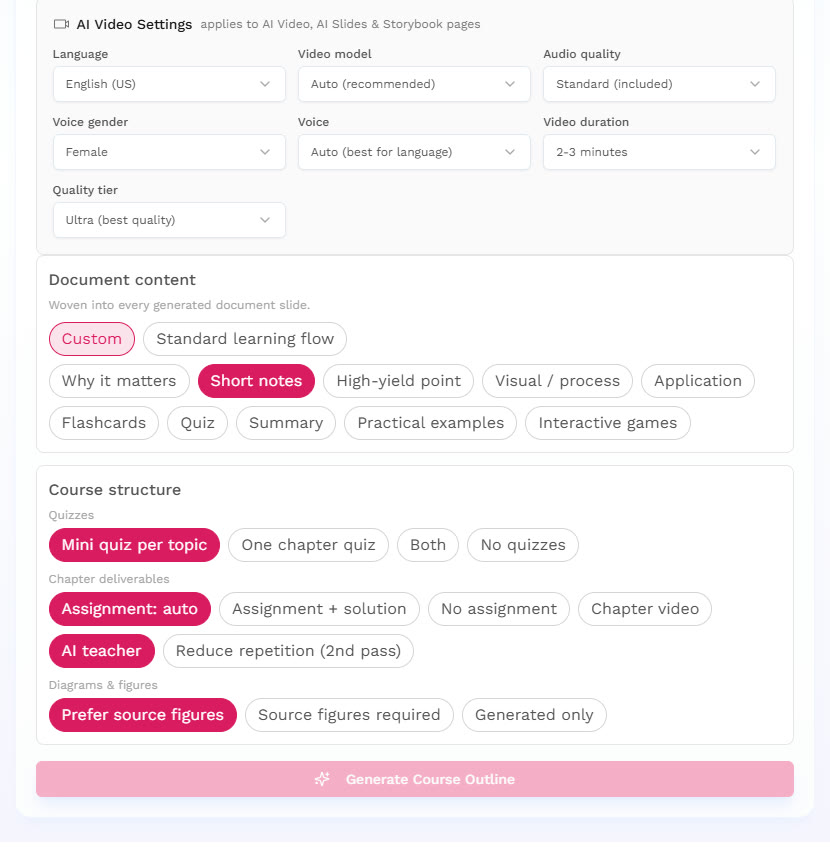
You can build or change the structure yourself too. This short recording shows how: add a chapter, name it, give it a thumbnail, then add slides inside it. Anything the AI writes can be reshaped the same way.
Step 5: Create Quizzes and Assessments
In Course structure you choose the quizzes: a mini quiz after each topic, one quiz per chapter, both or none. You also choose whether each chapter gets an auto-made assignment. For separate tests, Vsmart tools make question papers from a topic, a PDF, Word or PowerPoint file, a class recording or a photo of an old paper.
A topic prompt for a question paper (Vsmart Topics)
Class 11 Physics, Newton's laws of motion.
10 multiple-choice questions: 4 easy, 4 medium, 2 hard.
Include at least one numerical. Give the answer and a one-line reason for each.
Language: English.
Edit the result, then download it as a PDF or DOC. Written answers can go to AI evaluation, which reads scanned handwritten copies in English and marks them against your scheme. A teacher releases the marks.
Step 6: Set Up Delivery in the LMS
You choose how deep the course goes, from two levels for a short course to five for a formal program. A lesson can hold videos, PDFs, assignments, quizzes or a code editor. Sessions let one course run for several batches without rebuilding it. You can then enroll students by adding them one by one, uploading a CSV, sharing an invite link or listing the course in your catalogue, free or paid.
Live classes run on Zoom, Google Meet or YouTube Live from inside Vacademy, and attendance is recorded automatically. Vsmart Lecturer helps you plan each class: enter the topic, level, teaching style, duration and language, English or Hindi, and you get a plan with timing, examples and in-class questions.
Step 7: Launch and Improve the Course
Publish the course, or save it for review first. Vacademy reports show each student's progress across lessons, assessments and attendance, and can be shared by email or WhatsApp. For schools, parents can get automated reports. Certificates carry a QR code anyone can verify. When a chapter goes out of date, regenerate just that chapter and have a teacher check it.
Want to see Course AI build a chapter from your syllabus?
Vacademy's AI Tools for Creating Online Courses
Course AI is the main tool. These other Vacademy tools plug into the same platform, so what you make in one is ready to use in the others.
Course AI
The AI Course Builder. It writes the outline, lessons, slides, narrated videos, quizzes and assignments from your description or your own material.
AI video generator
The AI Video Generator makes narrated lesson videos with captions. You can change the voice, pace and length.
Vsmart Lecturer
Turns a topic into a timed lecture plan with examples and in-class questions, in English or Hindi.
Vsmart question tools
Make a question paper from a topic, a PDF, Word or PowerPoint file, a class recording or a photo. Download it as PDF or DOC. See the AI Quiz Generator.
AI evaluation
AI evaluation marks written answers, including scanned handwritten copies in English, against your marking scheme. Nothing reaches students until a teacher releases it.
Vsmart Feedback
Upload a recording of your class and get a report on delivery, content quality and student engagement.
Tutezy, the AI tutor
Tutezy turns your PDFs and videos into live whiteboard lessons in English and Hindi.
How Vacademy Helps EdTech Businesses, Schools and Coaching Institutes
The same tool is used in different ways, depending on who you are.
EdTech companies
- Launch new courses faster. The AI drafts the outline, slides, videos, quizzes and assignments, and your team reviews them.
- Keep one style across every course by uploading your tone and brand once.
- Turn one English course into other languages, chapter by chapter.
- Publish to the catalogue with an enrolment page, or export as SCORM for other systems.
Schools and universities
- Teachers skip the slide-making and review drafts instead.
- Build from your own PDFs, slides or a YouTube playlist, not just a topic.
- When the syllabus changes, regenerate only the chapter that changed.
- Every line stays editable, so a teacher approves it before students see it.
Coaching institutes
- Each lesson can come with a quiz or an assignment, so students practise at once.
- One course can run for several batches without being rebuilt.
- Tests, attendance, parent reports, fees and admissions sit in the same place.
- A small team can refresh a course for each new exam cycle.
As an institute grows, the same platform also covers admissions, fees, attendance and staff payroll.
Accuracy, Control and Data Safety
AI can make mistakes, so Vacademy is built around review. These are the checkpoints.
- A caution message appears before generation, reminding you to review the output.
- You approve the outline before any content is written. After that, the structure is locked.
- Every written block can be edited or regenerated. Videos and images can be regenerated up to two times.
- AI marks and question papers are drafts. A teacher releases results before students see them.
For student data, Vacademy is ISO 27001 certified, with encryption in transit and at rest.
Create Your First Course With Course AI
You do not need to build the whole course at once. Describe one chapter, add your own notes, check the draft and publish it to a small batch.
Vacademy keeps the outline, lessons, tests, batches and reports in one place, so your second course is easier than your first.
See the AI Course BuilderFrequently Asked Questions
How do I create an online course using AI?
In Vacademy, open Course AI and describe your course in a few lines. Set the chapters and the video options, then generate the outline and approve it. The AI writes each page. You review and edit it, then publish.
Can I build a course from my own notes or PDFs?
Yes. Course AI has a Build from option, so you can give it your own material, such as a PDF syllabus, slides or a YouTube playlist. Or you can start from a description alone.
How long does it take to create an online course using AI?
Vacademy's AI writes the first draft quickly, but the time you spend checking depends on the size of the course. You approve the outline first, then review each page. Regenerate any block that is not right.
What can Vacademy's AI create for a course?
Course AI writes the outline, lesson text, video scripts, diagrams, narrated videos, quizzes and assignments. Other Vacademy tools make question papers, plan lectures and mark written answers.
Is AI-generated course content accurate?
Not always, so every course must be checked. Vacademy shows a caution before generation, locks the outline only after you approve it, and lets you edit or regenerate any block. A teacher releases marks and results.
Will AI replace teachers in online courses?
No. AI can draft lessons, write questions and mark tests. It does not know where your batch gets stuck, or why a student has gone quiet. That judgment stays with the teacher.
Can I create online courses in Hindi using AI?
Course AI has a language setting for its videos, and Vacademy's Vsmart Lecturer plans lectures in English and Hindi. Ask a Hindi-speaking teacher to read the result, because subject terms can come out wrong.